(This is a [/now page]( ), and if you have your own site, [you should make one]( ), too.)## What I’m Watching<li><a href="https://www.cbs.com/shows/big_brother/">Big Brother</a></li><li><a href="https://www.cbs.com/shows/survivor/">Survivor</a></li><li><a href="https://go.discovery.com/show/deadliest-catch-discovery">Deadliest Catch</a></li><li><a href="https://www.discoveryplus.com/show/love-off-the-grid-us">Love Off The Grid</a></li>## What I’m Currently Making<li><a href="https://SeerOfSouls.com/" data-type="link" data-id="https://SeerOfSouls.com/" target="_blank" rel="noreferrer noopener">Personal Blog/Website</a></li><li>Job Hunting</li><li><a href="https://blog.allthingstech.social" target="_blank" rel="noreferrer noopener">AllThingsTech Blog</a></li>## What I’m Currently Enjoying<li>Playing video games</li><li>Watching TV shows with the wife</li><li>Staying inside out of the heat</li>## Music I’m Listening To<li><a href="https://music.youtube.com/channel/UCPC0L1d253x-KuMNwa05TpA" target="_blank" rel="noreferrer noopener">Taylor Swift</a></li><li><a href="https://music.youtube.com/channel/UCCL-yoaPLR-7bxZM1xlcQcQ" target="_blank" rel="noreferrer noopener">Bon Jovi</a></li><li><a href="https://music.youtube.com/channel/UCaeBWvnAVVgyfFT-gnWwURg" target="_blank" rel="noreferrer noopener">Motley Crue</a></li><li><a href="https://music.youtube.com/channel/UC0_1glf30IS53tFQWT8xpxw" target="_blank" rel="noreferrer noopener">Jelly Roll</a></li><li><a href="https://music.youtube.com/channel/UCjS9WiKfJgltFPDecfIHtDg" target="_blank" rel="noreferrer noopener">Sleep Token</a></li>## Video Games I’m Currently Playing<li><a href="https://en.wikipedia.org/wiki/Fortnite" target="_blank" rel="noreferrer noopener">Fortnite</a></li><li><a href="https://pathofexile.com">Path Of Exile</a></li>## Android Apps I’m Currently Using<li>Launcher: <a href="https://play.google.com/store/apps/details?id=com.teslacoilsw.launcher" target="_blank" rel="noreferrer noopener">Nova Launcher</a> and <a href="https://play.google.com/store/apps/details?id=com.teslacoilsw.launcher.prime" target="_blank" rel="noreferrer noopener">Nova Launcher Prime</a></li><li>Icon Pack: <a href="https://play.google.com/store/apps/details?id=com.pashapuma.oneyou.icons" target="_blank" rel="noreferrer noopener">OneYou Icons</a></li><li>E-Mail Client: <a href="https://play.google.com/store/apps/details?id=ch.protonmail.android" target="_blank" rel="noreferrer noopener">Proton Email</a></li><li>Photo Management: <a href="https://photos.google.com" target="_blank" rel="noreferrer noopener">Google Photos</a></li><li>File Explorer: <a href="https://play.google.com/store/apps/details?id=pl.solidexplorer2" target="_blank" rel="noreferrer noopener">Solid Explorer</a></li><li>Ride Sharing: <a href="https://play.google.com/store/apps/details?id=com.ubercab" target="_blank" rel="noreferrer noopener">Uber</a></li><li>Communication: <a href="https://play.google.com/store/apps/details?id=com.google.android.apps.messaging" target="_blank" rel="noreferrer noopener">Google Messages</a>, <a href="https://slack.com" target="_blank" rel="noreferrer noopener">Slack</a>, <a href="https://chat.allthingstech.social" target="_blank" rel="noreferrer noopener">Discord</a>, <a href="https://play.google.com/store/apps/details?id=com.facebook.orca" target="_blank" rel="noreferrer noopener">Messenger</a></li><li>Social Media: <a href="https://allthingstech.social/@cliffwade" target="_blank" rel="noreferrer noopener">Mastodon</a>, <a href="https://instagram.com/cliffwade" target="_blank" rel="noreferrer noopener">Instagram</a>, <a href="https://facebook.com/MrCliffWade" target="_blank" rel="noreferrer noopener">Facebook</a>, <a href="https://slack.com" target="_blank" rel="noreferrer noopener">Slack</a>, <a href="https://chat.allthingstech.social" target="_blank" rel="noreferrer noopener">Discord</a></li><li>Note Keeping: <a href="https://keep.google.com" target="_blank" rel="noreferrer noopener">Keep Notes</a></li><li>Cloud Storage: <a href="https://play.google.com/store/apps/details?id=me.proton.android.drive">Proton Drive</a></li><li>Browser: <a href="https://vivaldi.com" target="_blank" rel="noreferrer noopener">Vivaldi</a></li><li>Music: <a href="https://music.youtube.com" target="_blank" rel="noreferrer noopener">YouTube Music</a>, <a href="https://spotify.com" target="_blank" rel="noreferrer noopener">Spotify</a></li><li>Password Management: <a href="https://play.google.com/store/apps/details?id=proton.android.pass" target="_blank" rel="noreferrer noopener">Proton Pass</a></li><li>Search Engine: <a href="https://kagi.com" target="_blank" rel="noreferrer noopener">Google</a></li><li>Two-Factor Authentication: <a href="https://play.google.com/store/apps/details?id=com.beemdevelopment.aegis" target="_blank" rel="noreferrer noopener">Aegis</a></li>## iOS Apps I’m Currently Using Updated Today!<li>E-Mail Client: <a href="https://apps.apple.com/us/app/proton-mail-encrypted-email/id979659905" target="_blank" rel="noreferrer noopener">Proton Email</a></li><li>Photo Management: <a href="https://apps.apple.com/us/app/photos/id1584215428" target="_blank" rel="noreferrer noopener">Photos</a>, <a href="https://apps.apple.com/us/app/google-photos-backup-edit/id962194608" target="_blank" rel="noreferrer noopener">Google Photos</a></li><li>Ride Sharing: <a href="https://apps.apple.com/us/app/uber-request-a-ride/id368677368" target="_blank" rel="noreferrer noopener">Uber</a></li><li>Communication: <a href="https://apps.apple.com/us/app/messages/id1146560473" target="_blank" rel="noreferrer noopener">Messages</a>, <a href="https://apps.apple.com/us/app/slack/id618783545" target="_blank" rel="noreferrer noopener">Slack</a>, <a href="https://apps.apple.com/us/app/discord-chat-talk-hangout/id985746746" target="_blank" rel="noreferrer noopener">Discord</a>, <a href="https://apps.apple.com/us/app/messenger/id454638411" target="_blank" rel="noreferrer noopener">Messenger</a></li><li>Social Media: <a href="https://apps.apple.com/us/app/mona-for-mastodon/id1659154653" target="_blank" rel="noreferrer noopener">Mona for Mastodon</a>, <a href="https://apps.apple.com/us/app/instagram/id389801252" target="_blank" rel="noreferrer noopener">Instagram</a>, <a href="https://apps.apple.com/us/app/facebook/id284882215" target="_blank" rel="noreferrer noopener">Facebook</a>, <a href="https://apps.apple.com/us/app/slack/id618783545" target="_blank" rel="noreferrer noopener">Slack</a>, <a href="https://apps.apple.com/us/app/discord-chat-talk-hangout/id985746746" target="_blank" rel="noreferrer noopener">Discord</a></li><li>Note Keeping: <a href="https://apps.apple.com/us/app/google-keep-notes-and-lists/id1029207872" target="_blank" rel="noreferrer noopener">Keep Notes</a></li><li>Cloud Storage: <a href="https://www.icloud.com" target="_blank" rel="noreferrer noopener">iCloud</a>, <a href="https://apps.apple.com/us/app/proton-drive-cloud-storage/id1509667851" target="_blank" rel="noreferrer noopener">Proton Drive</a></li><li>Browser: <a href="https://apps.apple.com/us/app/vivaldi-powerful-web-browser/id1633234600" target="_blank" rel="noreferrer noopener">Vivaldi</a></li><li>Music: <a href="https://apps.apple.com/us/app/youtube-music/id1017492454" target="_blank" rel="noreferrer noopener">YouTube Music</a>, <a href="https://apps.apple.com/us/app/spotify-music-and-podcasts/id324684580" target="_blank" rel="noreferrer noopener">Spotify</a></li><li>Password Management: <a href="https://apps.apple.com/us/app/proton-pass-password-manager/id6443490629" target="_blank" rel="noreferrer noopener">Proton Pass</a></li><li>Search Engine: <a href="https://google.com" target="_blank" rel="noreferrer noopener">Google</a></li><li>Two-Factor Authentication: iCloud Keychain</li><li>Widgets: <a href="https://apps.apple.com/us/app/widgetsmith/id1523682319" target="_blank" rel="noreferrer noopener">WidgetSmith</a>, <a href="https://apps.apple.com/us/app/widgy-widgets-home-lock-watch/id1524540481" target="_blank" rel="noreferrer noopener">Widgy</a></li> #Now #AboutMe #Now #NowPage #Technology image

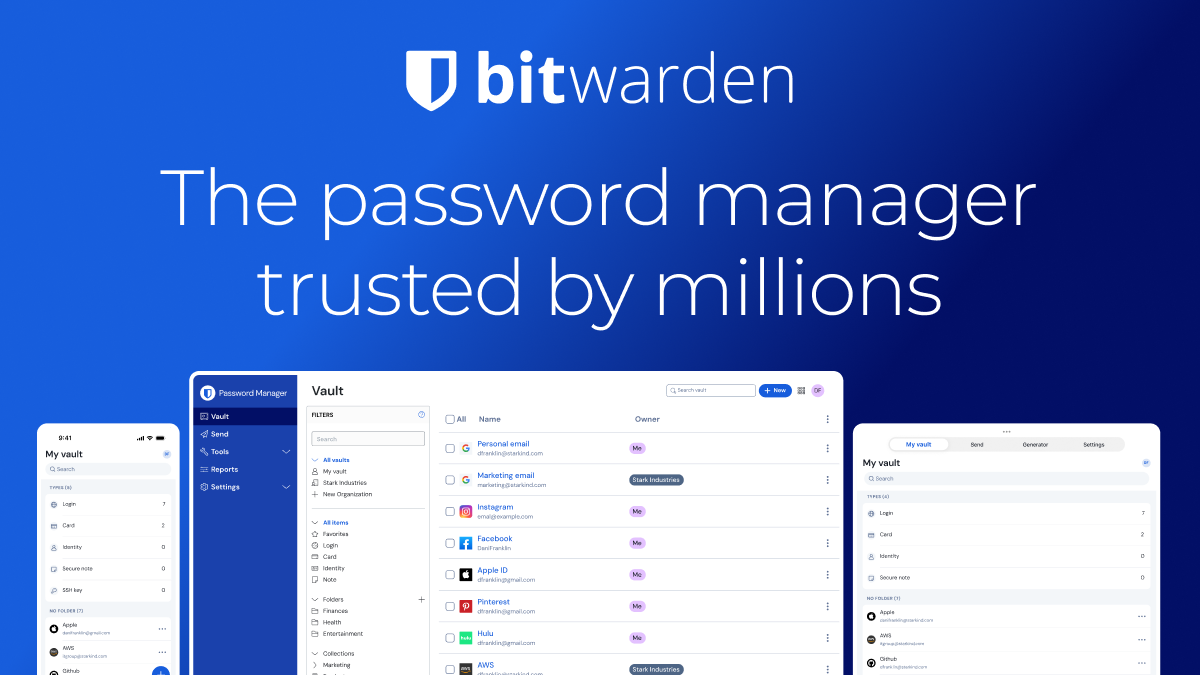
## Why You Should Be Using A Password ManagerIn today’s world we have some kind of login information for just about every site we visit frequently. From our email accounts, banking accounts, credit card accounts and so much more. It can be tough to memorize each and every password for each different site, especially since it’s never recommended to use the same password for more than one site. Not to mention, it can be tough to come up with a strong enough password for each site that’s easy enough for us to remember. This is where password managers come into play and I feel it’s very important that everyone should be using one. ## What Exactly Is A Password Manager?Password managers are apps that generate new, random passwords for all the sites you visit. They store these credentials for you in a secure virtual vault. Then, when you visit a site or open an app where you need to log in, the password manager automatically fills in your login name and password for you. Most password managers can also fill in your personal information, like name, address, and credit card number on web forms to save you time during account creation or checkout when making a purchase online. Some password managers can store your important documents or other credentials like safe codes and medical information in the vault, too. Another great thing that a really good password manager will do is to let you know if your existing passwords are weak, reused on another site or have shown up in a data breach or something similar. This is very important and can really help you suggest and create new, strong and unique passwords for any login you might need it for. I also recommend that when you use your password manager to create passwords for you, that you set it to at least 24 characters and have it use uppercase, lowercase, numbers and special symbols/characters. This just helps create more secure passwords.## Are Password Managers Free?There are indeed many password managers out there that are available for free today. Most have a free plan and a paid plan. The free plans will often have limitations of some sort put into place. This is of course to help persuade you to pay for a plan to get more features. Some of these paid for features are things like being able to create longer, more secure passwords, sync across multiple devices and other very useful and often needed features. I personally use [Proton Pass]( ) currently, but that’s because it comes with paying for a [Proton Mail]( ) account. Because I pay for Proton Mail, I get Proton Pass, Proton VPN, Proton Drive and more included with my service. I previously was using [Bitwarden]( ) which was a really good password manager that has tons of options and features. I only switched to Proton Pass since it was included when I made the move from Gmail to Proton Mail. Prior to that I was with LastPass for a lot of years. Back when they were really good and password managers were still relatively new. Today, I wouldn’t recommend them personally as they have had some issues over the last few years.## Test New Password Managers FirstIt is very important to choose a password manager that’s going to work best for you and your use. This means little things like making sure it works on all of the devices you use. Be it Windows, Linux, Android, iOS or any other platforms you might use that you could use it with. Remember, most password managers have a free trial or just a free version in general that you can use for a few weeks or so to see if it meets all of your needs. Once you find one that really works best for you, then it’s up to you if you move to a paid plan or not. You may or may not need or even want do that. That choice is strictly up to you. Another important thing to think about during this testing phase, is if you will be using this by yourself, or if you’ll want to have family members use it as well. Very important to know especially when it comes to a paid plan as then price comes into play.## Apply Multi-Factor Authentication To Your AccountOne way to mitigate the risk of an attack on your password manager is to use multi-factor authentication (MFA) to secure your account. MFA simply means that to unlock your password manager, you need something in addition to your master password. That something could be your fingerprint, your face or voice read by recognition software, a code sent to a mobile authenticator app, or a hardware security key. In addition, allowing access to the password manager only from registered, trusted devices can be another form of multi-factor authentication.## Password Manager Browser ExtensionsMost every password manager out there today has an extension that you can install into your browser to make using a password quick and easy. This used to not be the case back in the day, but in today’s world, it’s an absolute necessity due to how many passwords and such we’re storing. ## Set a Master PasswordOnce you’ve settled on the password manager of your choice, you have to set it up and protect it with a master password. Since you’re putting all your passwords in one place, i.e., the vault, you need to protect the vault with a master password. The master password encrypts the contents of your vault, so it needs to be super strong and something you will never forget. If you lose your master password, you lose access to all your logins in many cases (meaning you’ll have to do password resets for all your online accounts). If you choose a weak master password, you put all your credentials at risk. Take your time to pick a master password and just make sure it’s something you’ll always remember but make it something that’s not easy to figure out, such as your name, birth date, cats name or anything similar. If need be, write it down on a piece of paper and put it in a locked safe or something similar within your house so that you can easily access it but others won’t be able to get to it so easily.## Let Your Password Manager Do The Work For YouAny time you visit a website that requires login information, let your password manager do the work for you. This means let it help you create a password for you as well as remember that password and username or anything else of importance. This is exactly what password managers are for. They do the work so that you don’t really have to in most cases. Once you have the information stored for a site, then any time you visit the login screen for that particular site, your password manager should offer to auto-fill that information for you. This is exactly the goal of using one in the first place. ## Final ThoughtsI firmly believe there is no reason that anyone shouldn’t be using password manager. As stated originally, we have so many login credentials that we have to know and try to remember that it’s nearly impossible for us to keep track of it all in our heads. Password managers do all of the work for us and they do very well. Therefore they make life easier for us when it comes to browsing and using the internet. If you’re not already using a password manager, ask yourself why and do yourself a favor and find one that’s good for you. If you are using a password manager, which one do you use? Let us know via the comments below and tell us what features/options you like best about it. If you’d like to follow me on Mastodon which is my social media platform of choice, you can do so by clicking the button below. [ ***Cliff On Mastodon***](https://allthingstech.social/@cliffwade ) #2FA #AllThingsTech #Android #Apps #Bitwarden #iOS #LastPass #Linux #Login #LoginCredentials #PasswordManager #Passwords #ProtonPass #Technology #TwoFactorAuthentication #Windows image
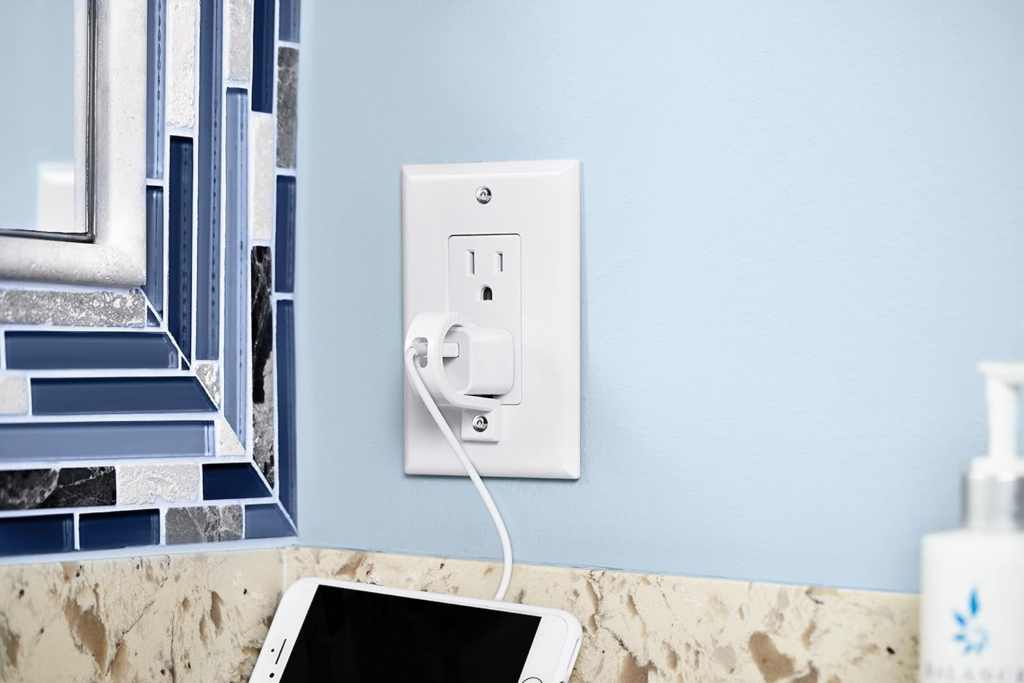
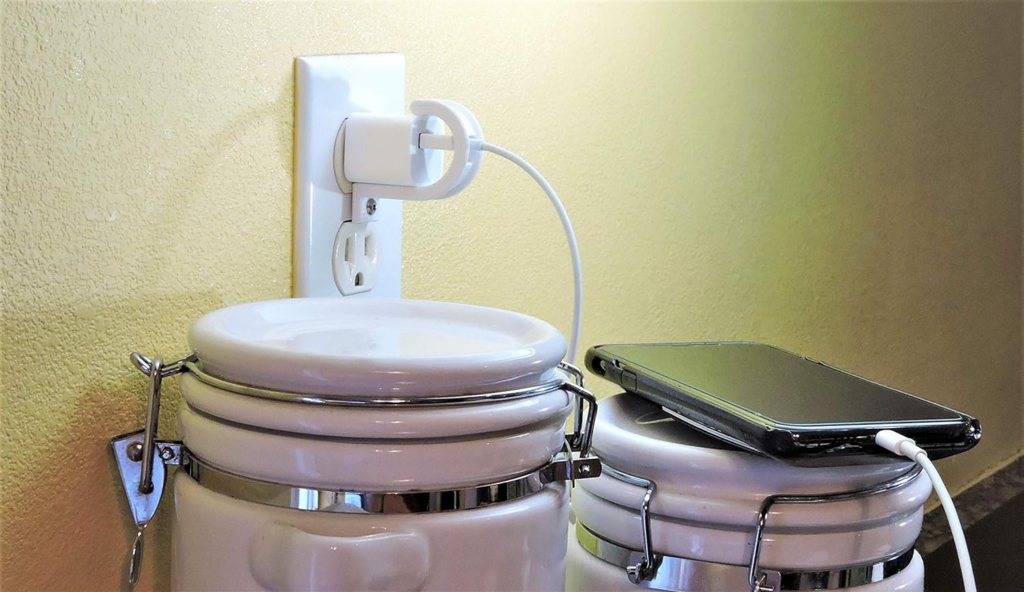
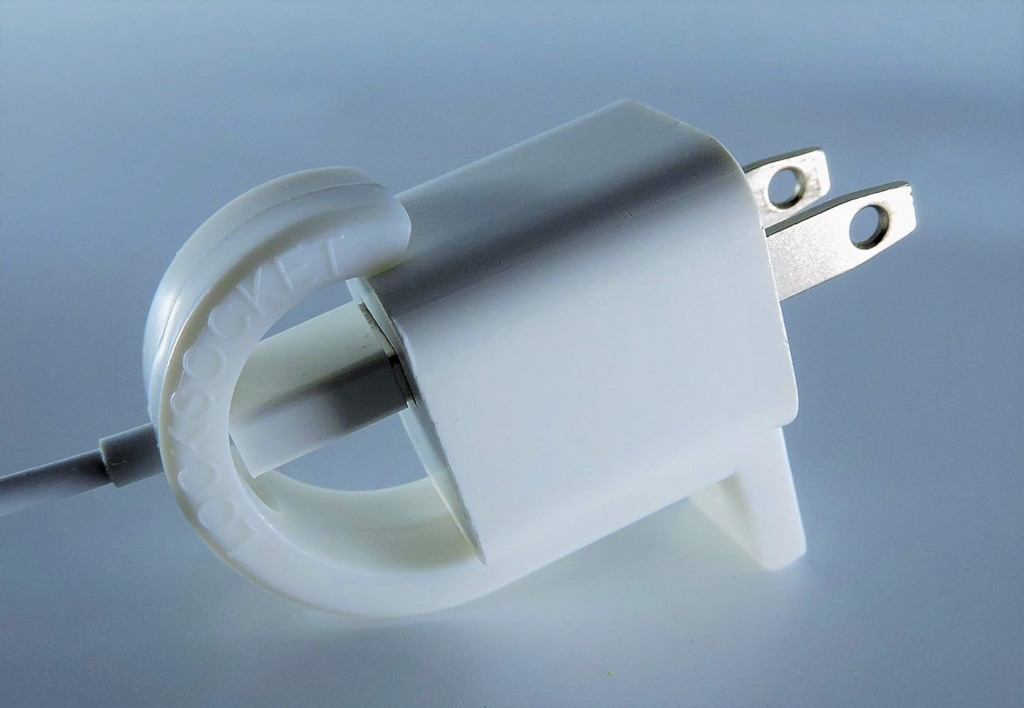
## Review: Lock Socket, Charging Cable Loss PreventionEver wish you could bolt down your iPhone or iPad charger to an outlet so it doesn’t walk away? A neat little accessory lets you do just that called [Lock Socket]( ), was sent to me to review and today I’m going to give you all the details of how it works. Originally [prototyped to stop the loss of chargers around the house](https://locksocket.com/about-lock-socket-phone-charger-lock/ ), the Lock Socket has many uses for homes, businesses, and schools, working best with official Apple/Samsung charging blocks for the best fit. Each type of charger lock aptly conforms to the dimensions of each block, allowing minimal wiggle room and allowing the cable to fit through. Fitting on standard or Decora wall plates, the seamless white color blends in nicely with its environment. It’s also worth noting that the Lock Socket is also available for other products such as [some Samsung devices](https://www.amazon.com/Charger-Compatible-Samsung-Support-Bracket/dp/B08C9F12NJ ), a 3-Pronged charger lock and even a [red version of the 3-Pronged charger lock](https://www.amazon.com/Lock-Socket-Outlet-Security-Resistant/dp/B0CHST8NDT/ ).### DesignWith each Lock Socket, you get the plastic “lock,” two Allen head screws (different lengths), and the matching 2 mm Allen key. The main portion uses sturdy (non-flexible) plastic that would make it difficult to break with bare hands. As you’ve probably already deduced, this isn’t a true locking solution, but the likelihood of people having a 2 mm Allen key on them is probably slim. Lock Socket offers enough hassle that most people will probably not bother trying to break the charger free. They will move on and try and find one that’s not secured in place. One more note on the design. Lock Sockets work with both standard duplex outlets with the cover plate screw hole in the middle or newer Decora style (rectangular outlets) that use cover plate screw holes on top and bottom. Unfortunately if you have cover plates that require no screws at all, you’ll be required to swap it out for one that does to be able to use Lock Socket.## Lock Socket UsesFor household use, we found the Lock Socket to be most beneficial for those places where you always have a charger in place or where you wouldn’t want guests or friends to “borrow” it. Where I think this would be hugely beneficial is for businesses such as cafes or offices where they allow others to use the services of charging their devices but having a Lock Socket would help prevent their charging cables to come up missing. Another good example is something like nurses. They can plug their charging brick and cable into the outlet at the nurses stating and use a Lock Socket to keep it in place. Then at the end of the shift they can quickly remove it and take it home. As for durability, the Locks screw and plastic hold pretty well, and if someone were to trip over the Lock Socket or a charger cable, it wouldn’t break or let the charger out of place. We think that the Lock Socket would be helpful in pet or child-proofing a house, limiting smaller and more curious lifeforms from getting themselves hurt or unplugging chargers.## Final Thoughts[Lock Socket](https://www.amazon.com/Lock-Socket-Charger-Compatible-Simplest/dp/B07P5P9X78 ) has so many great uses that almost makes it a must have product for around the house, business or office. At such a cheap price of $16.95 as of the writing of this review, that makes it even more worth picking up a few. Super quick and easy to install, very durable build quality and the fact that this will likely help save you or your office a bit of money by not having to replace the charging cable constantly, Lock Socket is something I highly recommend to everyone. #AllThingsTech #Apple #Chargers #Charging #LockSocket #Smartphones #Technology
## Review: WOLFBOX 2nd Gen Dual Zone Car FridgeA few weeks ago, I randomly got an email from a public relations company representing WOLFBOX products and listed in the email was the [WOLFBOX 2nd Generation Dual Zone Car Fridge]( ). I decided to reply to the email in hopes of getting one to review, and much to my surprise, they replied almost instantly stating they would send me one over. Little did I know, they would send the largest size which is 58 quarts and valued at nearly $700.00. So first and foremost, a huge **THANK YOU** to WOLFBOX for sending this my way for me to use and review!## Product Information<li><strong>Model</strong>: 58 quarts</li><li><strong>Connection Voltage</strong>: DC 12V/24V</li><li><strong>Cooling Capacity</strong>: -8F~68F(-22°C~20°C)</li><li><strong>Total Volume</strong>: 58 quarts</li><li><strong>Left Zone(in)</strong>: 11.8 x 7.5 x 11.1</li><li><strong>Right Zone(in)</strong>: 11.8 x 10.6 x 18.4</li><li><strong>Power Consumption(Max/Eco)</strong>: 65W/48W</li><li><strong>Cooling System</strong>: Compressor</li><li><strong>Net Weight(58 quart)</strong>: 40.1 lbs</li><li><strong>Refrigerant Weight(LP)</strong>: 0.05(R600a)</li><li><strong>Operating Temperature</strong>: -10°C to +43°C(+14°F to 109°F)</li>Let me start off by saying that the packaging on the WOLFBOX fridge was beyond excellent. The device fit in the box perfectly and was wrapped up with plastic, styrofoam on the corners and much more. It therefore arrived in perfect condition which is always a plus for something so large such as this. It’s important to note that when you first receive the fridge, that you allow it to set upright for 24 hours before plugging it in and powering it on. This is to make sure the refrigerant settles properly and doesn’t cause any issues. The WOLFBOX Dual Zone Car Fridge comes with a 12V plug, a wall plug with a power brick, an extra fuse for the 12v plug and of course the owner’s manual. ## About The Wolfbox Car FridgeThe WOLFBOX 12V Portable Refrigerator is equipped with Quick Freeze technology, which allows it to drop the temperature from 32℃ to 0℃ within about 30 minutes. This feature is especially convenient during outdoor activities when you want your drinks or food to cool down quickly. The fridge also provides customizable temperature settings between -8°F~68°F (-22°C to 20°C), allowing you to chill or freeze your items at your preferred temperature. In addition to its efficient cooling capabilities, the WOLFBOX car fridge is almost completely silent when in operation, thanks to its noise level below 45db. It is also designed to withstand slopes up to 30 degrees, ensuring stability even on uneven surfaces. The LED lights, removable lid, and other thoughtful details make it user-friendly and convenient. The car cooler comes with a low-voltage intelligent protection system, which offers three-level battery protection to prevent drain. It also offers two modes, ECO and MAX, for energy savings or quick cooling, depending on your needs. WOLFBOX takes pride in their high-quality after-sales service, providing customers with peace of mind and confidence in their purchase. The WOLFBOX 12V Portable Refrigerator is a reliable and versatile cooling solution for car, camping, travel, and home use. With its spacious capacity, quick cooling capabilities, and user-friendly features, it has enhanced my travel experiences and eliminated the hassle of limited space. The WOLFBOX 12V Portable Refrigerator is designed with user convenience in mind. It comes with both 12/24V DC and 220/240V AC adapters, making it versatile for use in different settings. The refrigerator operates silently, with a noise level of below 45db, providing a peaceful environment while on the road. Its anti-vibration and anti-shake functions also ensure stability even on slopes up to 30 degrees. ## Low-Voltage ProtectionI appreciate the intelligent low-voltage protection system of the WOLFBOX car cooler, which offers three-level protection to prevent draining my car’s battery. With the option to choose from low, medium, and high gears, I can customize the cooling performance based on my needs. The refrigerator also features two modes, ECO and MAX, allowing me to select between quick cooling or energy-saving options. This not only ensures the safety of my car battery but also saves energy and extends the overall lifespan of the refrigerator.## Quick Freeze TechnologyOne of the standout features of the WOLFBOX 12V Portable Refrigerator is its quick freeze technology. With the ability to drop the temperature from 32℃ to 0℃ in just 24 minutes, I no longer have to wait impatiently for my beverages to chill. This is particularly convenient during outdoor activities when time is of the essence. Additionally, the fridge allows me to adjust the temperature between -8°F to 68°F, ensuring my food and drinks are kept at the precise temperature I prefer.## Product SizeThe size of this 58 quart WOLFBOX car fridge is absolutely stunning. It can hold so much stuff for your long trip, camping adventure, beach excursion or whatever else you might be doing. You’ll be able to hold plenty of cold drinks, food for snacking on or eating when you get hungry or whatever else you would like to put into it.## LightingThe inclusion of LED lights in the WOLFBOX refrigerator is a thoughtful touch. It allows me to easily locate and access my food and drinks, even in low-light conditions. The removable lid adds to the convenience by making it effortless to clean and organize the fridge. I can easily pack it with all my essentials and rearrange items as needed for efficient storage. The user-friendly features of the WOLFBOX 12V Portable Refrigerator, such as the availability of various power options, silent operation, anti-vibration function, LED lights, and removable lid, contribute to a hassle-free and enjoyable experience.## WOLFBOX AppWOLFBOX has an app that connects via Bluetooth to the fridge and lets you control just about every aspect of the fridge. You can control things like adjusting the dual zone temps, battery protection and energy saving mode. The app was super simple to use. It was literally as easy as installing and opening the app and following the prompts and everything on the screen. Once the app was installed and I opened it, it immediately connected to my review unit without me having to do anything at all. Quite nice to see this happen as often times, connecting devices like this can be a pain.## Favorite FeatureThe ability to rapidly freeze items is particularly useful during outdoor activities. For instance, when I went to Myrtle Beach, I used the WOLFBOX 12V Portable Refrigerator to freeze perishable items such as meat, fruits, and vegetables. This not only ensures that my food stays fresh for longer but also provides me with the convenience of having a wide variety of meals to choose from. Additionally, during hot summer days at the beach, the Quick Freeze technology allows me to enjoy chilled drinks within minutes. It is a game-changer, as I no longer have to rely on cooler bags filled with ice that eventually melt. Dealing with ice is nothing shy of troublesome and annoying to say the very least. The Quick Freeze technology of the WOLFBOX 12V Portable Refrigerator has significantly enhanced my travel experiences. It provides me with the convenience of quickly chilling my food and beverages, making my trips more enjoyable and stress-free.## Final ThoughtsWhile the [WOLFBOX 2nd Gen Dual Zone Car Fridge]( ) 58 quart version is priced at $589.99 as of this writing, I feel it’s a great deal for the product that you get. The normal price of this car fridge is $669.99 so you’re saving $80 if you purchase it now. For that price you get an amazingly built product that is made to last you many years to come. Regardless if you travel frequently by taking road trips, use it when you go camping, taking it with you on your fishing trips, this is the fridge you need with you to keep your food and drinks ice cold so you don’t suffer as much during those hot times. There is also a 39 quart and a 48 quart version available if you need something slightly smaller. Luckily I was sent the largest version to review and I’m grateful for that experience. Those are priced at $429.99 and $469.99. Definitely something to think about depending on how much room you have in your vehicle or just how much stuff you think you might be taking with you. #AllThingsTech #CarFridge #Tech #Technology #Wolfbox
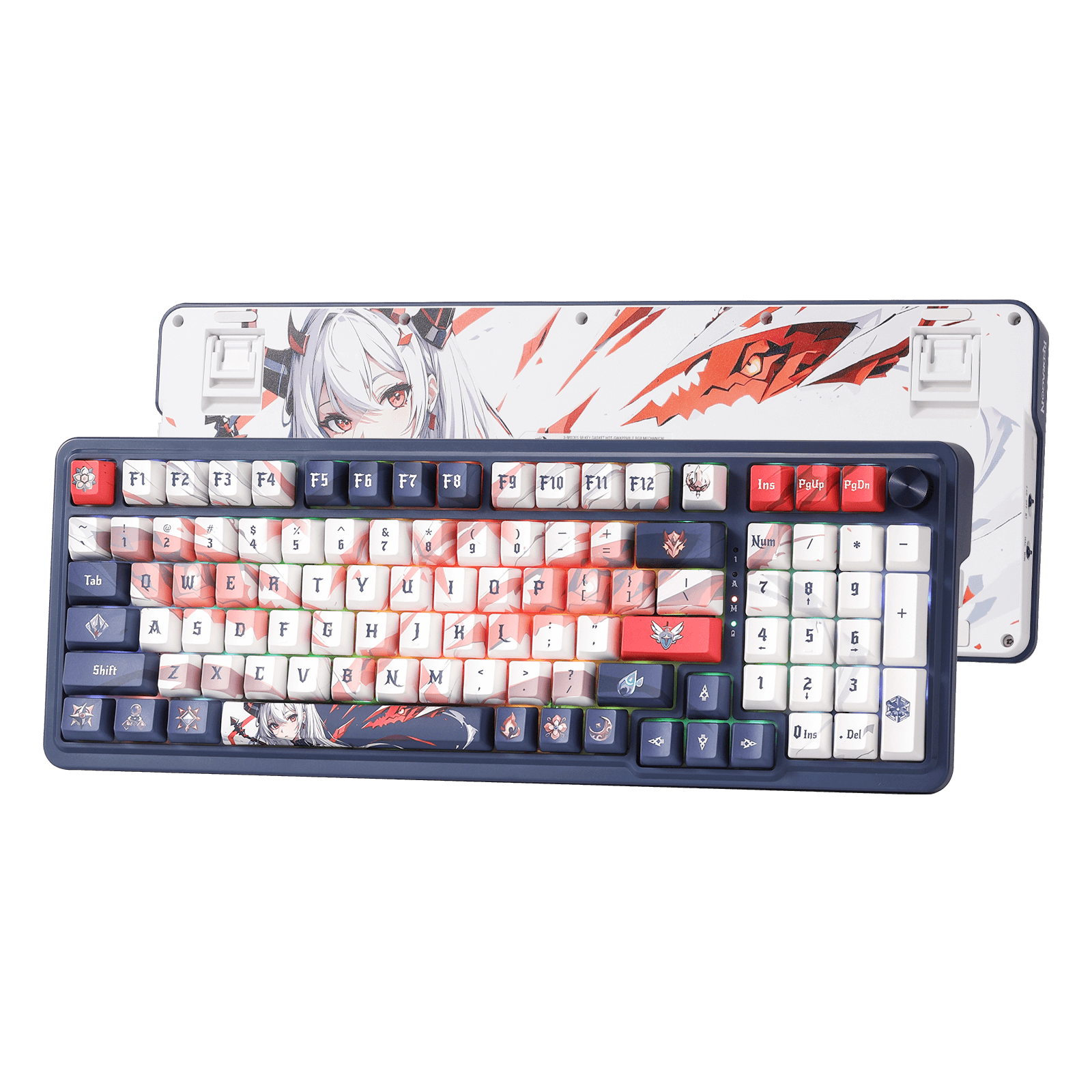
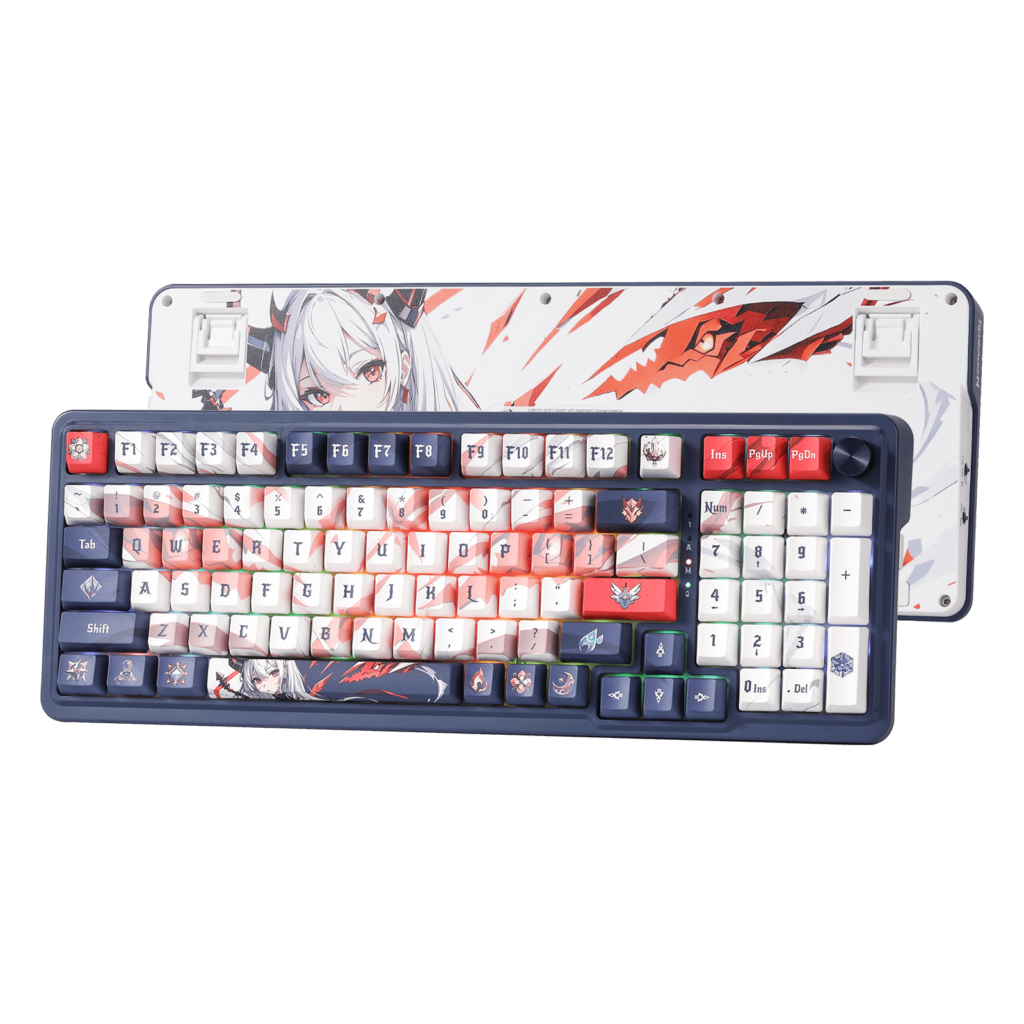
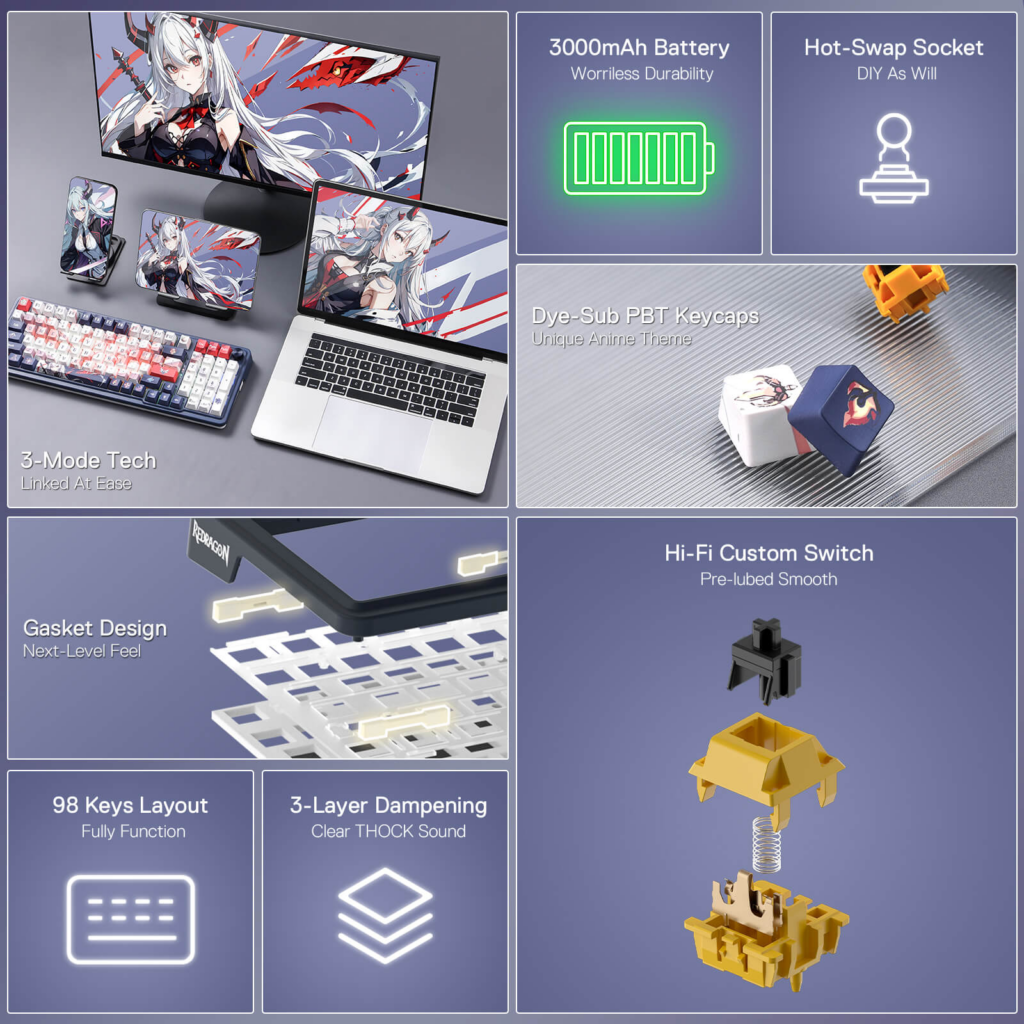
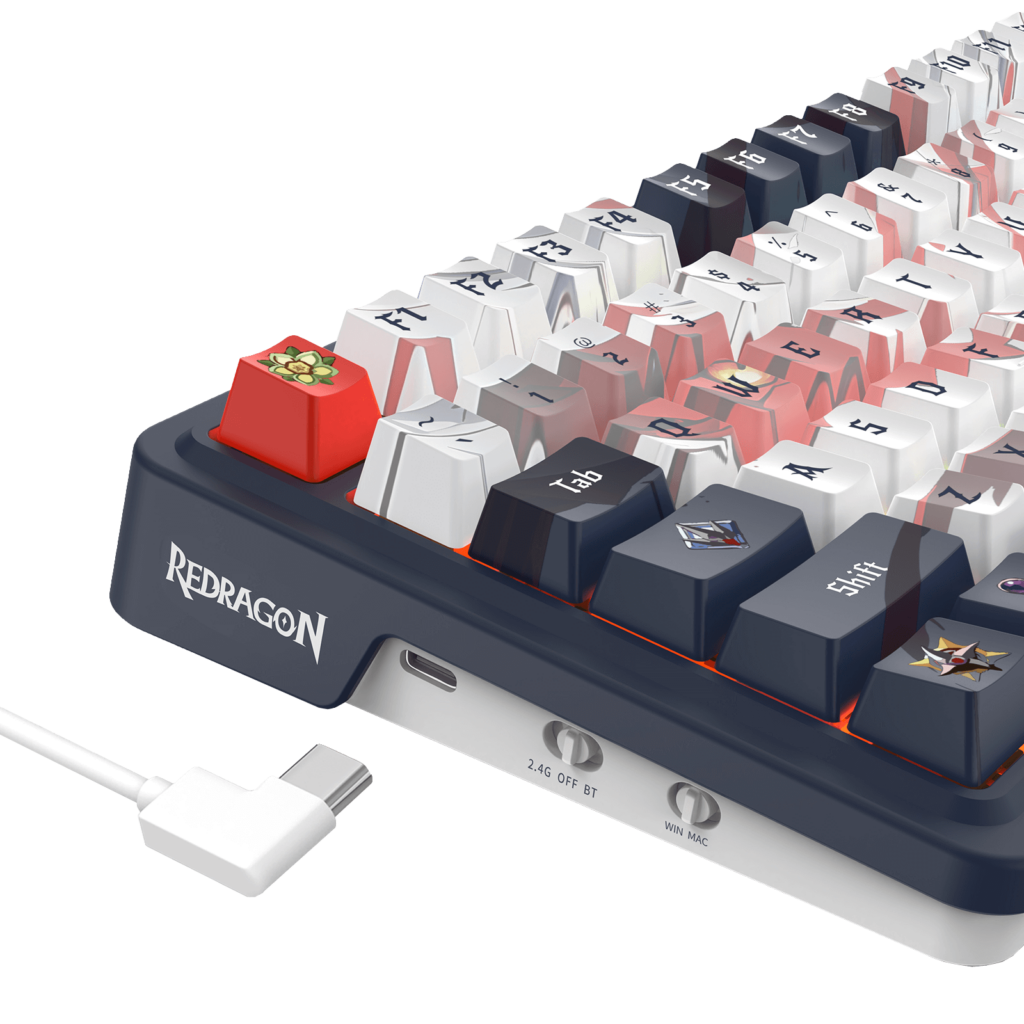
## Review: Redragon Eisa K686 Pro SEThe [Redragon Eisa K686 Pro SE]( ) is a mechanical keyboard that punches above its weight in terms of features, especially considering its attractive price point. Let’s delve into the details to see if this keyboard clicks all the right boxes for you.## **Design And Build Quality**The K686 Pro SE boasts a compact 98-key layout that manages to squeeze in a full number pad, making it ideal for those who need it for productivity tasks, like myself. The keyboard itself is constructed from plastic, which feels sturdy enough for everyday use. However, some users might miss the premium feel of an aluminum frame found in more expensive keyboards. What truly sets this keyboard apart is its aesthetics. It features eye-catching anime-themed artwork that won’t be for everyone, but undeniably adds a unique flair. The keycaps are made from high-quality PBT plastic, known for their durability and resistance to shine. These keycaps are dye-sublimated, a process that prevents the legends (letters and symbols) from wearing off. While I’m personally not a fan of anime in any way and never have been, even I have to admit that the design on this keyboard is absolutely gorgeous. ## **Features**The Eisa K686 Pro SE is packed with features that enhance functionality and user experience. Here are some highlights:<li><strong>Gasket Mount:</strong> This mounting style utilizes a silicone gasket to absorb sound and vibrations, resulting in a softer and more pleasant typing experience.</li><li><strong>Hot-Swappable Switches:</strong> This allows you to easily customize the keyboard’s feel by swapping out the pre-installed switches with any compatible 3-pin or 5-pin switches. The stock switches are custom linear switches, lauded for their smooth and quiet operation.</li><li><strong>Tri-Mode Connectivity:</strong> Connect wirelessly via Bluetooth 3.0 or 5.0, or use the included USB-C cable for a wired connection. This versatility makes it suitable for various setups, from desktops to laptops.</li><li><strong>Dedicated Media Knob:</strong> A convenient knob on the top right corner allows for quick and easy control of volume, playback, and other media functions.</li><li><strong>RGB Backlighting:</strong> Complete with a variety of lighting effects and customization options, the RGB backlighting adds a touch of personality to your setup.</li>## **Performance And Typing Experience**The [Eisa K686 Pro SE]( ) comes equipped with Redragon’s custom Hi-Fi linear switches. These pre-lubed switches provide a smooth and quiet typing experience. Gamers will appreciate the anti-ghosting technology that ensures all your keypresses register accurately during intense gaming sessions. The keyboard is also fully hot-swappable, meaning you can easily replace the switches with others of your preference without soldering. This caters to users who want to personalize their typing feel. The Eisa K686 Pro SE boasts full RGB backlighting with a variety of lighting modes and effects to choose from. You can customize these effects through the included software or function keys.## **Connectivity And Battery Life**The Eisa K686 Pro SE offers a versatile tri-mode connection: wired USB-C, Bluetooth 5.0, and 2.4 GHz wireless. This allows you to seamlessly switch between devices depending on your needs. The wireless functionality is powered by a beefy 3000mAh battery, which Redragon claims offers extended usage on a single charge. However, specific battery life figures depend on factors like backlight brightness and usage patterns. From my experience it can last anywhere from 2 to 4 days on a single charge with moderate use and backlighting on medium settings.## **Software**Expand your options using the available software to design your own new modes and effects found on Redragonshop. Macros with different keybindings or shortcuts for more efficient work and gaming. The software can be downloaded directly from the Redragon site here: [Redragon Eisa K686 Pro SE Software](💾.exe ).## Discount CodeThanks to the awesome folks over at Redragon for allowing me to review this product and others that they have sent over in the past. They have also provided me with a special URL that anyone can use to save a total of 10% off of your entire purchase across their site. So if you’re interested in purchasing the [Redragon Eisa K686 Pro SE]( ), or any of their products, you can click this link: [Save 10% On Your Entire Order]( ). I believe if you don’t click the link, you can always manually input ***DECRYPTED*** as the code during check out.## **Conclusion**The Redragon Eisa K686 Pro SE is a compelling option for budget-conscious users who prioritize features and aesthetics. Currently priced at $63.74, that’s a hard price to pass up for everything this beautiful keyboard has to offer. It offers a compact design with a full number pad, hot-swappable switches, gasket mounting for a comfortable typing experience, and a unique anime-themed design. While it might not have the premium build quality of high-end keyboards, it delivers excellent value for its price. If you’re looking for a feature-rich mechanical keyboard that won’t break the bank, the Redragon Eisa K686 Pro SE is definitely worth considering. Just keep in mind the design aesthetic and the slightly lighter switches if those are factors that might influence your decision. #AllThingsTech #EisaK686 #Keyboard #MechanicalKeyboard #Redragon #Technology
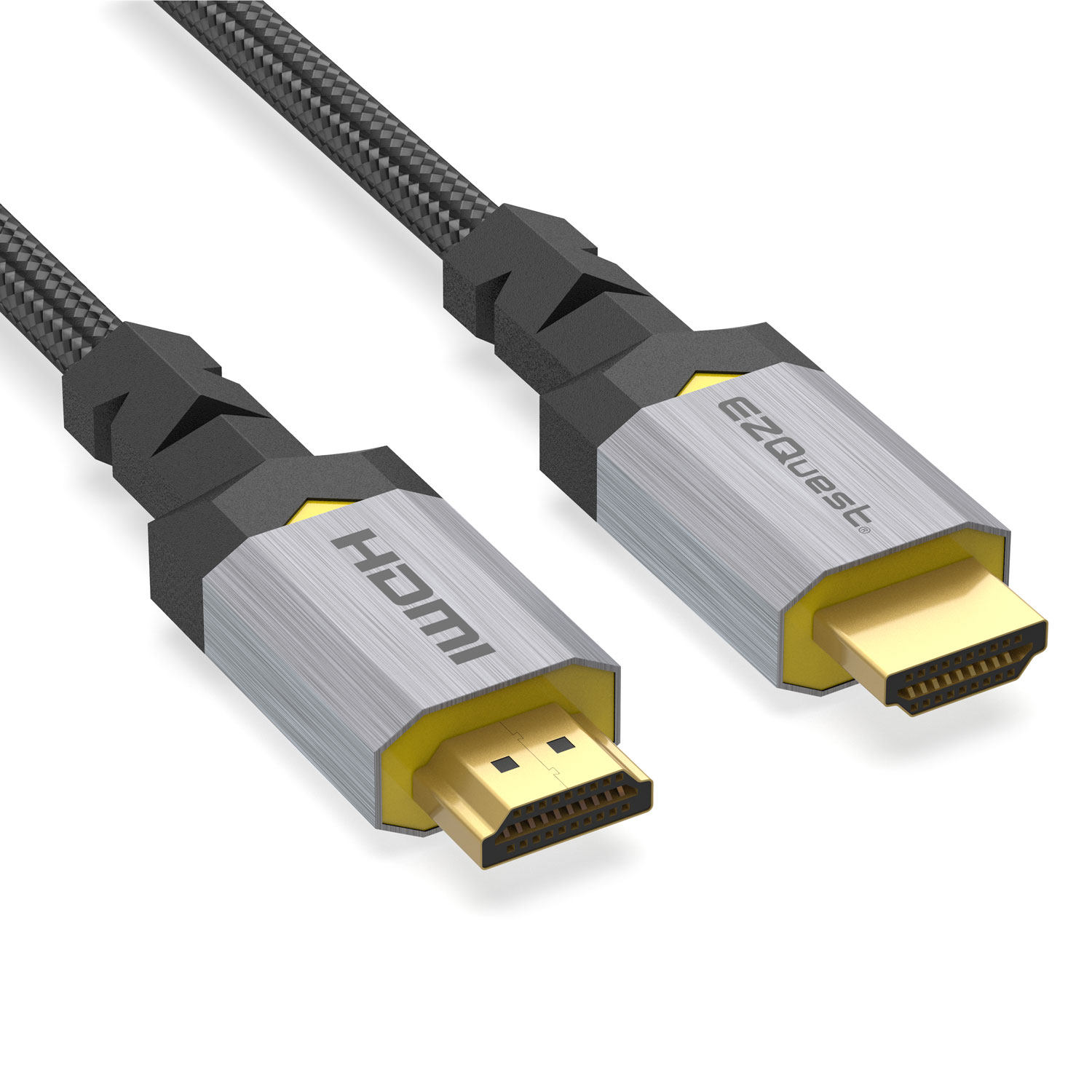
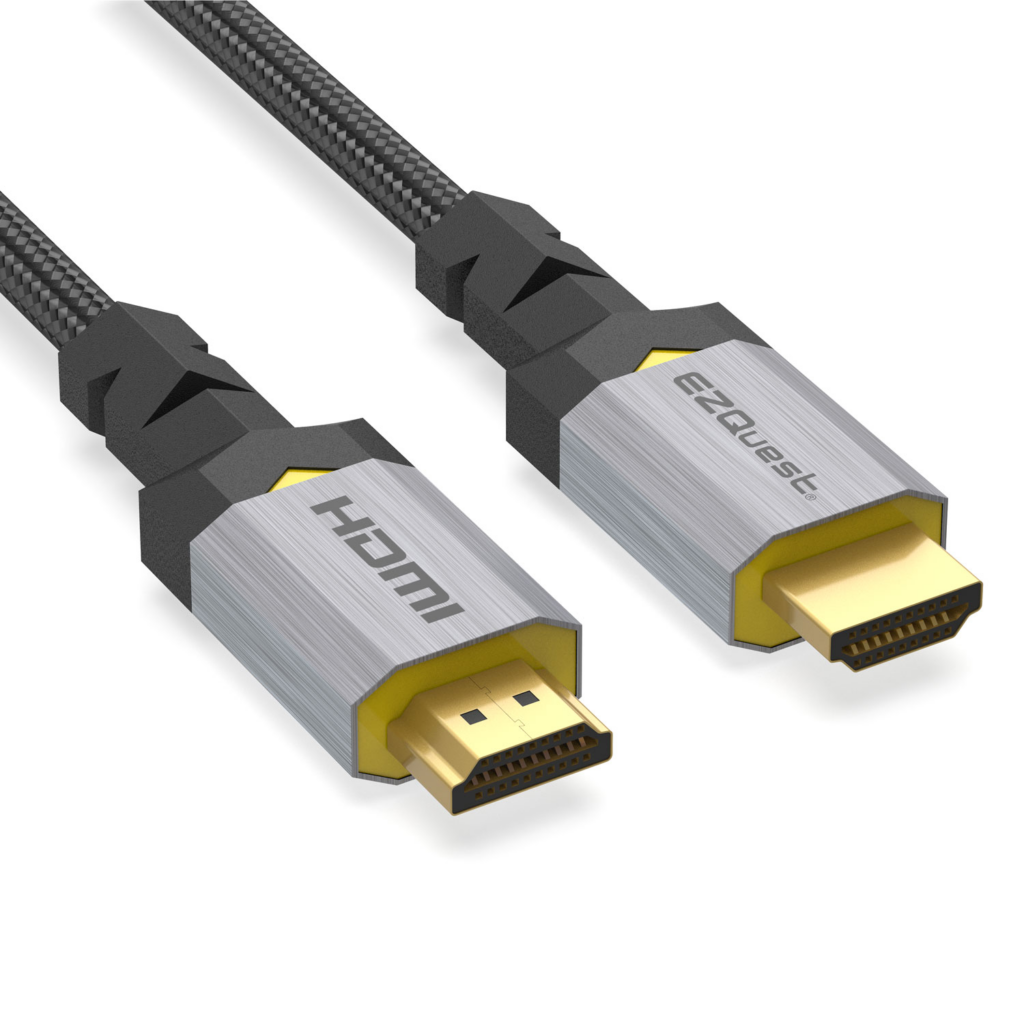
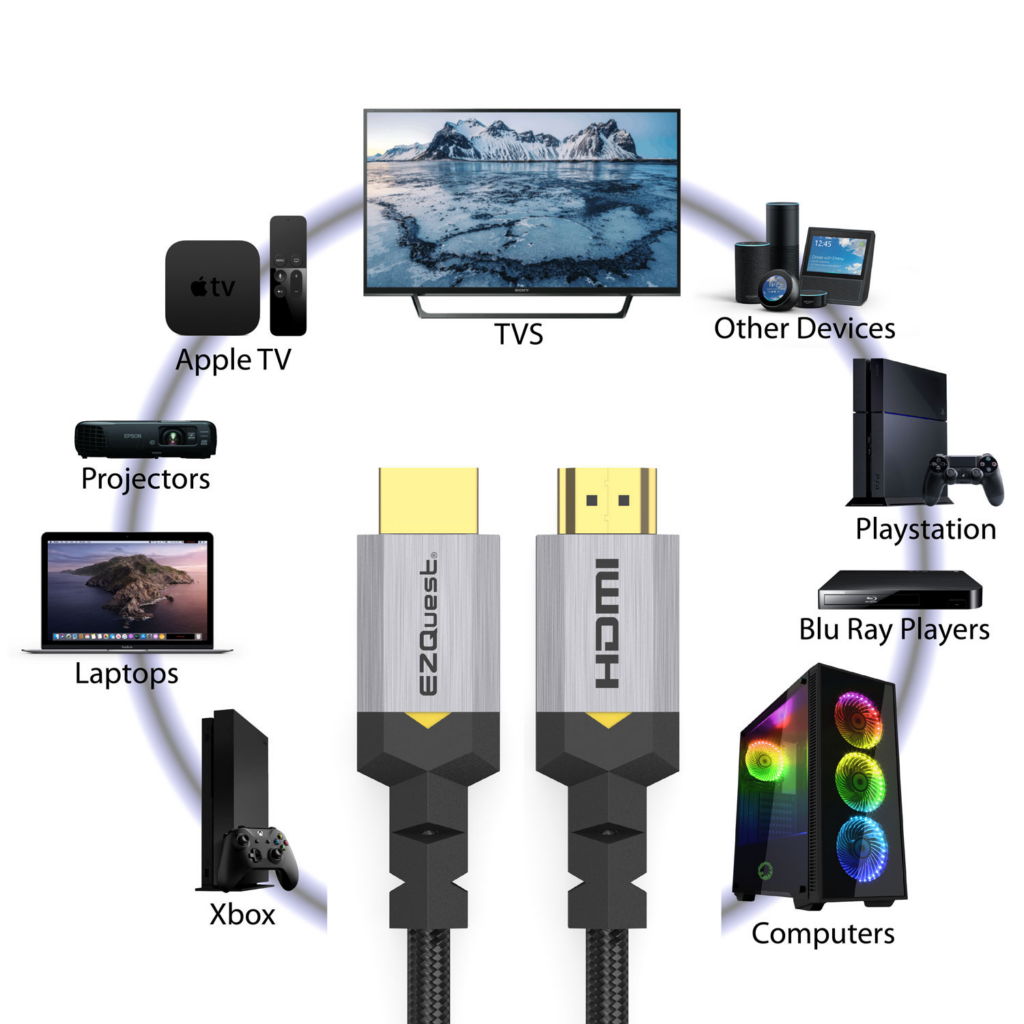
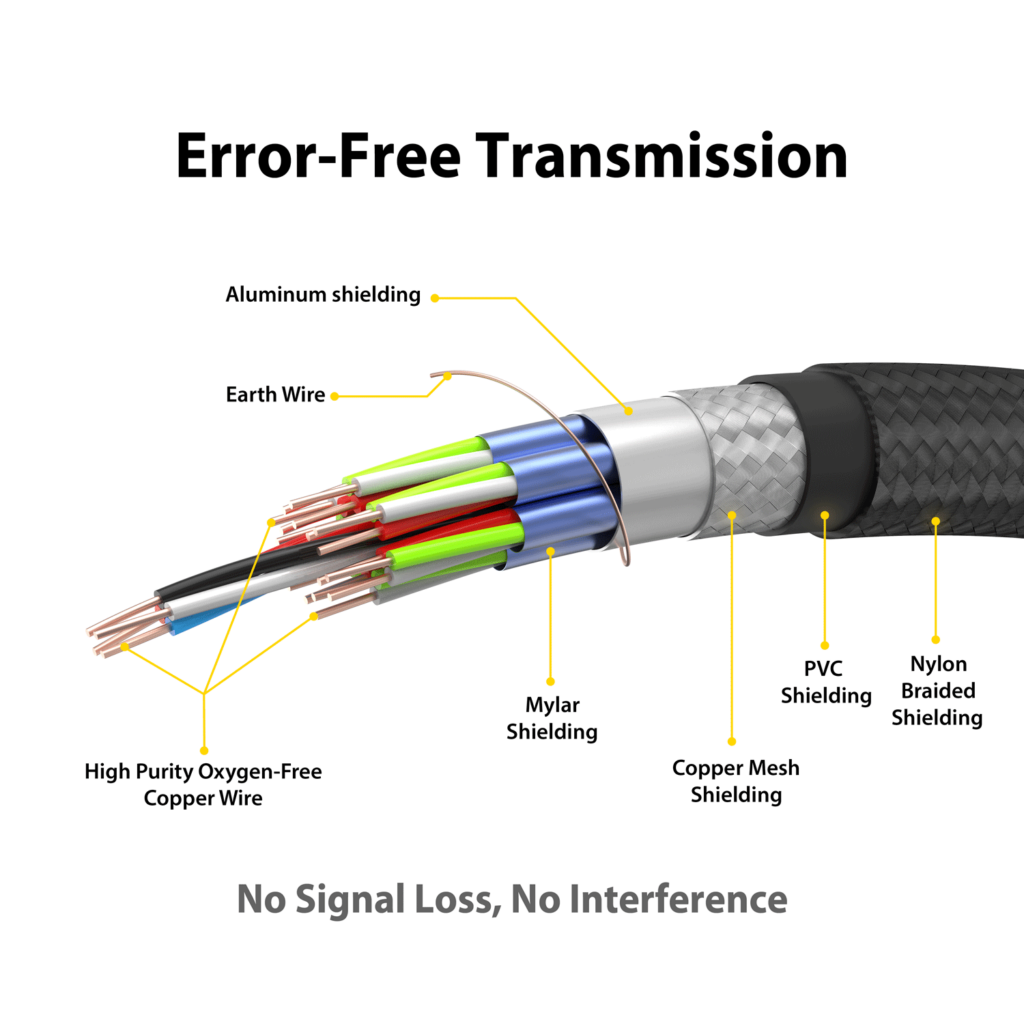
## Review: EZQuest Ultra High Speed HDMI CablesThe awesome folks over at EZQuest has sent me a couple of their [EZQuest Ultra High Speed HDMI 10K 60Hz Cables]( ) to review and today, I’m going to dive in and give you all the details of these cables and how well they work. Let’s start off by listing the features and the specifications of the cables as it’s important to know what these cables are cable of doing at various resolutions.<tbody><tr><td class="has-text-align-left" data-align="left"><strong>Specifications</strong></td><td><strong>Product Features</strong></td></tr><tr><td class="has-text-align-left" data-align="left">Interface: HDM to HDMI</td><td>Nylon braided outer sheath, strain relief and strong aluminum connector housings</td></tr><tr><td class="has-text-align-left" data-align="left">Resolution: 1920×1080 – 3840×2160 4K, 5120×2160 5K,<br>7680×4320 8K, 10240×4320 10K</td><td>Includes HDMI Ethernet Channel</td></tr><tr><td class="has-text-align-left" data-align="left">Refresh Rates: Up to 120Hz</td><td>Supports Multiple Static and Dynamic HDR Solutions</td></tr><tr><td class="has-text-align-left" data-align="left">Color: Space gray brushed aluminum with black nylon braided cable</td><td>Supports the full range of uncompressed HDMI 2.1</td></tr><tr><td class="has-text-align-left" data-align="left"></td><td>Enhanced Audio Return Channel (eARC)</td></tr><tr><td class="has-text-align-left" data-align="left"></td><td>Quick Media Switching (QMS)</td></tr><tr><td class="has-text-align-left" data-align="left"></td><td>Quick Frame Transport (QFT)</td></tr><tr><td class="has-text-align-left" data-align="left"></td><td>HDCP 2.2 Support</td></tr></tbody> EZQuest claims that the Ultra High Speed HDMI cables will work with any product that supports HDMI cables and will provide you with the best quality picture possible for that specific product. The three products I tested were the Sony Playstation 5, my PC monitor and regular TV that supports up to 4K.## Playstation 5 QualityLet’s start with the PS5 and let me note that I’m using some basic HDMI cable that I got off of Amazon I believe. The cable costs around $10 – $20 if I had to guess, and it’s something I’ve had since the day the PS5 was released, so about 3 years now. Once I hooked up the EZQuest Ultra High Speed HDMI cable, I noticed very little improvement while on the PS5 home screen. Then I started up Fortnite, with everything set to the highest quality graphics, and that’s where the difference seemed to change quite a bit. Quality was crisper, richer and just a bit more detailed. Playing Fortnite always looks good on the PS5, but these cables certainly seems to have made a difference here. ## DirecTV Stream QualityWhen it comes to watching regular TV, the wife and I currently subscribe to DirecTV Stream as we don’t watch too much TV, so we don’t require cable with tons of channels. There are only a few 4K channels available and my TV actually supports 4K so I decided this is where I would test things out. Again, I have the same HDMI cable hooked to my TV that I have for my Playstation 5. I’ve had that cable for 2+ years since we moved here. The TV I have is a 65-Inch Roku TV so it’s nothing super expensive, but not super cheap either. While on the Roku TV home screen, as was the case with the PS5, the home screen didn’t look too different with the EZQuest cable hooked up. Once I flipped over to Discovery ID, which is what the wife and I watch the most, I noticed an ever so slight little difference in quality. Truly not something to brag about much, but there was a bit. Then I found a channel that worked in 4K, and when I switched over to it with my regular cable, I can tell you the quality was good. Once I switched cables over the EZQuest cable, that’s again where I noticed a bit of improvement. Colors seemed to be a bit brighter and just overall clearer and crisper all around.## PC QualityThe last and final test was going to be with my PC and my main monitor which is an [Alienware 34-inch Curved OLED Gaming Monitor (AW3423DW)]( ). Hooked to this monitor is the HDMI cable that came in the box with the monitor so it’s a bit more expensive than the ones I have hooked to my TV and PS5. The goal here was to again test mainly while playing Fortnite to keep it a similar test to the PS5. Due to the quality of the monitor itself, most everything looks really good regardless if it’s games or just browsing the internet. Hooking up the EZQuest Ultra High Speed cable didn’t really change too much here. It was only noticeable at certain angles or certain points of the game to be honest. I don’t blame this on the cable itself, because as stated above, I have a really good monitor that came with a really good cable out of the box so there’s not much room for improvement here. ## Final ThoughtsOverall my thoughts on the [EZQuest Ultra High Speed HDMI]( ) cables are very positive. They do exactly what EZQuest claims they will do provided you don’t already have top of the line stuff hooked that you’re replacing. They are great quality braided cables which is something I absolutely love when it comes to cables of most any kind. Considering that these cables are normally $19.99 but are currently on sale for $15.99 makes this a no-brainer in my opinion. They certainly aren’t the end all be all when it comes to HDMI cables, but to be honest here, I’m not sure there is such a cable that fits that description today. It’s more about personal preference and what you, the user, sees and can tell the differences between. #10K #120Hz #4K #8K #AllThingsTech #EZQuest #HDMI #Technology #UltraHighSpeed
## My Favorite Nova 8 Beta Features[Nova Launcher](https://play.google.com/store/apps/details?id=com.teslacoilsw.launcher ) has been around for well over 12 years at this point and has been the number one ranked 3rd party home screen replacement app in the [Google Play Store](https://play.google.com/ ) for most of that time. Nova has tons of features that users find useful when it comes to various ways they can customize their home screens and even app drawers. Today, I’m going to give you my top three favorite Nova 8 Beta features that I use and enjoy the most. One thing to note about these features is that they might require you to purchase and to use [Nova Launcher Prime](https://play.google.com/store/apps/details?id=com.teslacoilsw.launcher.prime ). Currently the price for Nova Launcher Prime is $4.99 USD. ## Swipe Up And Swipe Down On App IconsI try to keep my home screen relatively clean, as you will see by the screenshot below. While yes, I have a few icons, but I certainly don’t have a lot. Those that I do have, often do more than just launch the app icon that you see and click. For instance, my Mastodon icon that you see on the bottom row, second from the right, launches Mastodon if you click it. The cool thing here is, if you swipe down on that app icon, it will launch Instagram. You can see that I have this setup by long pressing the icon and clicking Edit(pencil icon). You’ll also notice, as mentioned in the section title, you can set a Swipe Up action on any icon as well. While certainly handy, I don’t use the swipe up action too much as swipe down is more of a natural feel for me. It’s worth noting that for swipe up and swipe down you can set it to launch apps, Nova Actions or even shortcuts for various other apps. The swipe up and down on app icons can be a very useful feature and something I use all day, every day.## Nova Search Micro-resultsThis is a feature that’s not really advertised or mentioned much of anywhere, but back when Nova 7 was in very early beta, or maybe even alpha stages, Kevin added something really fun and neat to Nova’s search and those are called Nova’s micro-results. As you can see by the couple of screenshots below, I have used the Nova search bar on the home screen, though this works from the app drawer too if you have a search bar added there, you can search for something like 32F, or any temperature and it will convert it to 0C in the results. You can do the same for something like 50ft and other things. The list of micro-results below is a pretty complete list of what you can do within Nova’s search bar if you’re using Nova 7 or higher. It’s certainly not a complete list as I believe there are other things such as moon phase and it will tell you the current phase of the moon.Caclulator (2+2)Unit converter (10F or 10oz to g)Open URL in (<a href="https://novalauncher.com/" target="_blank" rel="noreferrer noopener">https://novalauncher.com/</a> and it'll let you pick which web browser)Maps for addresses (1234 W State St)Call/SMS for phone numbersDirect links for package tracking numbersDirect link for flight tracking numbersDirect link for Bitcoin/Ethereum addresses (blockchain.info)## Nova Gestures & InputsThis has been around for many years, so it’s not necessarily new in Nova 8 Beta, but it’s a feature, or set of features if you will, that I have used extensively for years. That’s Nova’s Gestures & Inputs. Things like swipe up, swipe down, two finger swipe up, Pinch In and others. All of these can be done on Nova’s home screen and like the swipe actions on icons, you can configure them to open specific apps, perform certain Nova Actions or to perform shortcuts to various other things that other apps offer. While not an unlimited amount of things you can do here, the options are very numerous. My most used Nova gestures are swipe up for Nova Settings and Double Tap to access System Settings. These are things I’m always having to access since I work for Nova and do a lot of testing of various different things not only for myself, but for users who email me with issues or questions. Again, such a powerful feature of Nova that so many users don’t really take advantage of or don’t really understand what all they allow you to be able to do. These are my top three favorite features of Nova Launcher 8 Beta. While they aren’t specific to Nova 8 Beta itself, it’s the current beta version that we are working on and it’s what I’m using on a daily basis on my Pixel 8 Pro. If you are interested in using Nova 8 Beta versions, you can either Join The Beta for Nova Launcher via your device in the Play Store, or you can download the APK and install it manually from here: Please make sure to grab the latest beta version, which as of this writing is Nova 8.0.14. If you have questions or comments, please don’t hesitate to ask me via the comments below and I’ll be happy to answer anything I can. Make sure to follow Nova Launcher on Mastodon here: [Nova Launcher](https://allthingstech.social/@novalauncher ) or you can follow myself, Cliff Wade, via Mastodon here: [Cliff Wade](https://allthingstech.social/@cliffwade ). #AllThingsTech #Android #Apps #Nova #NovaLauncher #Smartphones #Technology image
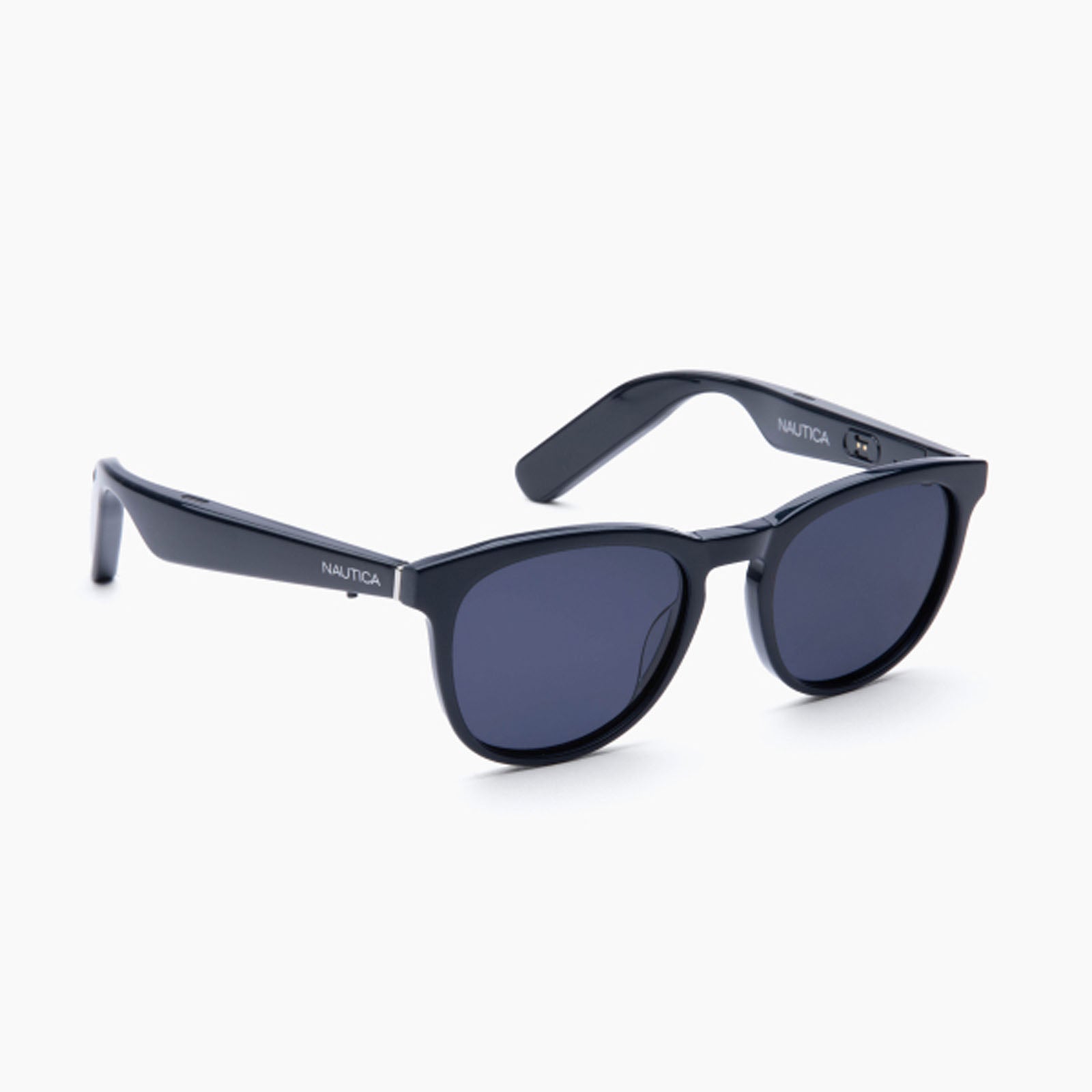
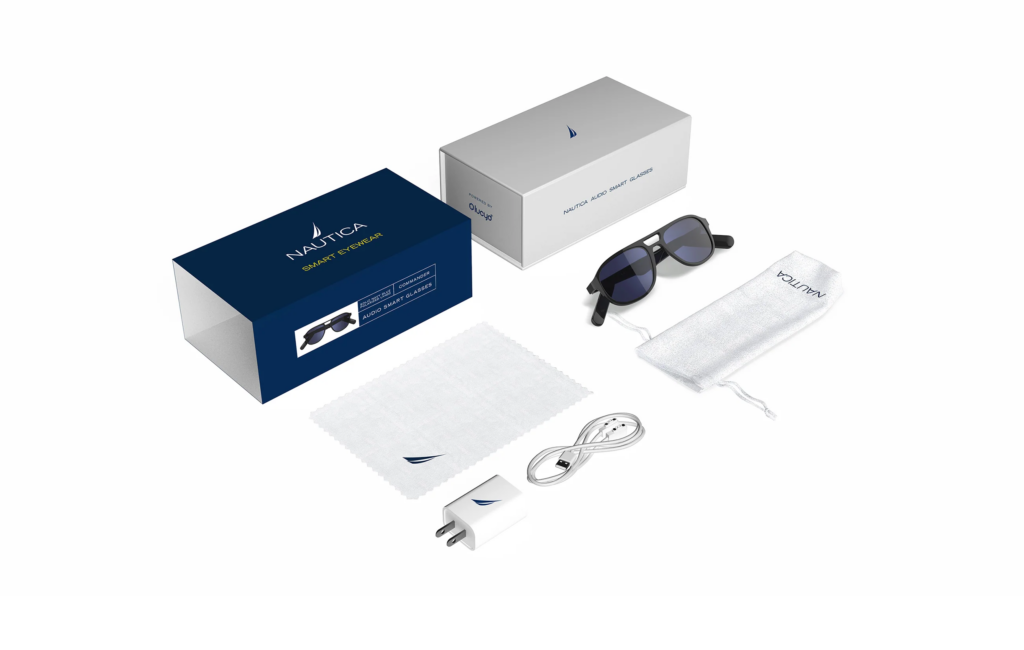
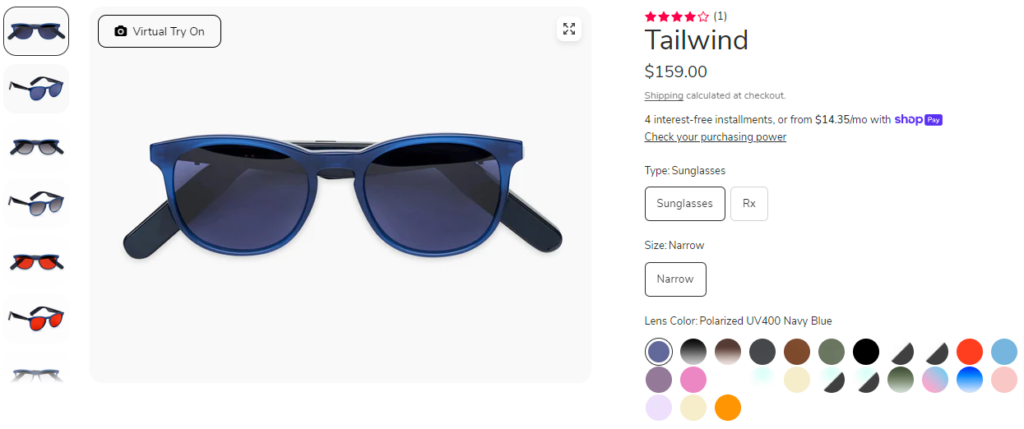
## Review: Nautica Tailwind Smart EyewearToday I’m going to take a look at the new [Nautica Tailwind Smart Eyewear]( ) that look like ordinary glasses, or even more like sunglasses, that feature a built-in microphone and speakers. These allow you to do things such as listen to music, take calls, send text messages and other things. ## What’s In The Box?<li>Nautica Tailwind smart glasses</li><li>Charging cable with USB-A</li><li>Charging cable wall adapter</li><li>Cleaning cloth</li><li>Carrying bag</li><li>Instruction booklet</li>## Design And SpecificationsThis is Nautica’s first dive into the smart eyewear category of things. [Nautica has partnered with Lucyd]( ) to bring a stylish pair of smart glasses built around Lucyd’s technology of glasses that is an industry leader. The Nautica Tailwind use Bluetooth to connect to your phone which allows you to hear notifications, music, phone calls all while commanding your phone’s powerful Assistant, which will be Google Assistant if you’re using Android or Siri if you’re using iOS. The glasses come equipped with open-ear headphones and the microphone built right into the stylish glasses themselves. The Nautica smart glasses start at a good price of $159 and you have a choice of 8 different frame styles and more than 100 types of customizable lenses, including the option to add a blue light blocker for indoor use. I was sent the Nautica Tailwind in a Solid Navy Blue and Polarized UV400. As you can see by the image below, there are 25 different colors that you can choose from for the frames themselves. A very impressive selection in my opinion. Lucyd also allows you to add your own Rx prescription to the glasses if you need or want to do that. This option is an additional $35, which would bring the total price of the smart glasses to $194, which is still in my opinion a pretty fair price. For comparison here, the Amazon Echo Frames, third generation, start at $270 and that doesn’t include prescription lenses of any kind. Lucyd states that the Tailwind are made for most women and men with narrow faces, small to medium sized heads or even for youth who would be wearing them. While Lucyd didn’t ask me what size I needed or wanted, the Tailwind actually fit really good for me personally so I feel they made the right, lucky, choice. Acetate round frame with 90 degree 5-barrel hinge, and no extension piece on the front-plate, and light gray stripes. You can see sizing details below for the Nautica Tailwind.<li><strong>Frame Width</strong>: 139mm</li><li><strong>Lens Width</strong>: 53mm</li><li><strong>Temple Size</strong>: 150mm</li><li><strong>Bridge Size</strong>: 20mm</li> All styles, at a glance, look like ordinary glasses. The incognito smarts are an attractive draw to the line, as you have to look closely to notice the built-in technology. Two of the four speakers sit on top of the temples, with the other two located on the bottom of the temples, near where they rise over your ear. A small, metallic button juts out from the bottom of each temple near the front of the frames, and pinholes for the noise-canceling microphones sit just behind the buttons. Small charging contacts sit on the inside of each temple. One feature of the Nautica smart glasses worth noting here is that they come with an IP56 water-resistance rating. What this means is they can withstand splashes of water from any direction and will resist harmful deposits of dust. Since I mentioned the Amazon Echo Frames above, it’s worth noting that they offer a lower IPX4 rating compared to these that I have. The battery life of the Nautica smart glasses is supposed to be 12 hours according to the specifications listed by Nautica. I tested this across four different uses of the battery being full until dead and my average use was just over 13 hours across all four uses. That was with me listening to music and messing around with all the different features of the device. While doing all of this I had the volume set at 100%, which can often use a bit more battery. Overall, just over 13 hours of average use is very impressive in my book.## Setup And ControlsSetting up Nautica’s smart glasses takes a matter of moments, as they arrive partially charged and don’t need to sync with the Lucyd companion app to perform most of their capabilities. You simply turn them on by holding both buttons for three seconds, connect them to your phone using your device’s Bluetooth menu, and you’re done. The included charging cable splits into two magnetic contacts that attach to both temples. While the glasses are charging, a red light near the charging contacts stays lit. The light turns off once they’re fully charged. If you decide to plug them in before you do the initial setup, they will automatically turn on when you remove them from the charger. Once you have powered them on and paired them your device should recognize them as a pair of headphones. For me, in my Bluetooth menu they are listed as Nautica Eyewear and have a little headphone icon next to them. Once connected, you can use your phone to control music playback and volume on the glasses, or use their built-in buttons on the bottom of the arms. Click the left button once to turn the volume down. Double-click to play or pause a track. Click three times to advance the track. On the right, click once to turn up the volume. Double-click to access the voice assistant on your phone. Click three times to go back a track. When your phone rings, you can double-tap either button to answer or hold either button to decline the call. Hold both simultaneously for three seconds to power the glasses on, or seven seconds to turn them off. Having the buttons to control these things is very simplistic which is something I do happen to appreciate. However, I really wish they would have included separate buttons for at least the volume controls. I think this would have made controlling things a bit easier as adjusting the volume currently can often trigger other commands, which as you can imagine, can get frustrating.## ChatGPT FunctionalityTo access the [ChatGPT](https://chat.openai.com/auth/login ) features of the Nautica smart glasses, you must connect them to an iOS device and use the Lucyd companion app. While you can use the Lucyd app on Android to access and control ChatGPT, it’s worth noting that the glasses aren’t involved in any way by doing this. Luckily I also happen to have an iPhone 15 Pro Max that I could pair the Nautica Tailwind to and test the ChatGPT side of things, which is one of the biggest features of these glasses to begin with. When paired with an iOS device, you can use the glasses to talk to ChatGPT after one additional setup step. Open the Lucyd app on your iPhone, double-click the right button on the glasses to access Siri, and then say “Lucyd.” The app will prompt you to add a Siri shortcut for the Lucyd command. Accept the pop-up request and you’re good to go. Setting up the integration on iOS is simple enough. However, every time you want to interact with ChatGPT with your voice, you need to repeat most of the same process: Double-click the right button to talk to Siri, say “Lucyd,” and state your prompt. It’s tedious, especially if you use the feature frequently.## Sound QualityWhile not surprising due to the form factor we’re dealing with here, the sound quality is very underwhelming in most every sense of the way. I tested the Nautica Tailwind smart glasses in an absolutely quiet setting, as well as with the TV going in the background and then in a bit busier setting with a couple of friends talking to each other. Each of these scenarios was pretty difficult to hear what the glasses were saying, even in the quietest location. I thought this could be because of my older age and the fact that my hearing isn’t as good as it once used to be. So I handed them to my wife and had her do a few things and she came back with the same conclusion as I did in each setting. While these smart glasses happen to have four speakers, when the voice commands are being done, it only uses the front two speakers for some reason. I feel if it were to use all four speakers, sound quality might be a bit more desirable, especially in the quietest of settings. Under the tips section of the manual, it says, “If you’re having a hard time hearing someone on a phone call, you can cup your hand over your ear to amplify the sound greatly. It’s still more comfortable than holding a phone to your ear!” This doesn’t really give me confidence in using the glasses for phone calls on a regular basis. I can’t imagine doing this for a lengthy phone call such as 20+ minutes. Just not an ideal thing to have to do. Listening to music on the Nautica Tailwind simply isn’t enjoyable either. There’s no bass, no drums, just flat, bland, boring music. This lead to me do some testing with tracks that don’t have a fair bit of bass and the experience was slightly better, but not by much. Unfortunately for Nautica and Lucyd, I get a better music experience with my $7 earbuds that I’ve used for several years now. ## Final ThoughtsWhile the price of the [Nautica Tailwind]( ) is an affordable $159, overall in my opinion it’s really not worth it. The number one reason here is the overall sound quality. It’s just lacking in every way possible and a device like this really needs to have good sound quality simply because of what they are and what they do. I think Nautica and Lucyd really miss the mark here and I’d certainly be interested in seeing a newer model of these after Nautica and Lucyd get feedback from reviewers like myself on where they missed the mark. #AllThingsTech #Android #Nautica #SmartEyewear #SmartGlasses #Tailwind #Technology
## Mobile Apps I Use The Most; The Android EditionToday I’m going to talk about the Android apps that I use most often on my device or along side of my device. I was inspired by [jcrabapple’s]( ) post that he did titled: [More of my Favorite Apps](https://cool-as-heck.blog/posts/more-of-my-favorite-android-apps ). These are apps that I highly recommend to others to use for various reasons. These apps are often apps that I’ve used for several years now, though some are apps that I’ve just recently started using that work best for me personally. All of these apps I currently have installed on my [Pixel 8 Pro](https://store.google.com/product/pixel_8_pro ) running Android 14 Beta QPR3.## [Nova Launcher](https://play.google.com/store/apps/details?id=com.teslacoilsw.launcher ) And [Nova Launcher Prime](https://play.google.com/store/apps/details?id=com.teslacoilsw.launcher.prime )Nova Launcher and Nova Launcher Prime are two apps I’ve been using for 11+ years. For that don’t know, Nova Launcher is a 3rd party home screen replacement app so that you don’t have to use the stock launcher on your device. Along with Nova Prime, Nova Launcher provides a lot more customization for you to get the look and layout that you want. If you’ve never given Nova Launcher a try, it’s an app that I personally install as the very first app on any new Android device I get. ## [Solid Explorer](https://play.google.com/store/apps/details?id=pl.solidexplorer2 )Solid Explorer is a file management app inspired by the old school file commander applications. Solid Explorer lets you navigate to files stored on your device and automatically organizes them into collections. You can view, delete, move, rename or share any files. It also allows you to quickly find the files you need through indexed search with filters. This is another app I’ve used for well over 10 years and is one of the first apps to get installed on any device I own. ## [Vivaldi Web Browser](https://play.google.com/store/apps/details?id=com.vivaldi.browser )Vivaldi has become my browser of choice as of about 6 – 7 months ago. For me, it does so many little things that other browsers don’t do when it comes to browsers on the web. While I don’t use a web browser often via my Android device, I choose to use the same thing on my mobile devices that I use via the PC. Vivaldi allows me to sync everything from the PC to the mobile version and that just makes using it that much easier. ## [Trunks For Mastodon](https://play.google.com/store/apps/details?id=com.decad3nce.trunks )Trunks for Mastodon is the best way to experience Mastodon any of your devices, at least on the Android side of things. With its rich features and intuitive interface, trunks makes it easy to stay connected with your friends, follow your favorite topics, and discover new content. The developer is constantly adding new features and fixing bugs. Trunks is also available via the web as well as iOS, which is something a lot of users enjoy as they can use it everywhere. ## [Proton Mail](https://play.google.com/store/apps/details?id=ch.protonmail.android )Like Vivaldi above, Proton Mail is something I just recently switched to within the last couple of months or so. I switched from Gmail to Proton Mail because I wanted something a bit more secure and something that would allow me to have a bit more control over my email compared to what Gmail offers. Proton Mail is encrypted email from Switzerland. Used by millions worldwide, our all-new email app protects your communications and has everything you need to easily manage your inbox.## [Aegis Authenticator](https://play.google.com/store/apps/details?id=com.beemdevelopment.aegis )Aegis Authenticator is a free, secure and open source app to manage your 2-step verification tokens for your online services. Similar to Authy or Google Authenticator that most people are familiar with, Aegis is another two-factor authentication app that helps you keep all of your online accounts safe and secure from possible intruders. The number one thing I like about Aegis is that you can import/export your information to and from other similar apps, assuming those apps allow you to export things. Aegis is one of the first 5 – 7 apps I install on any new device as I often need it to be able to log into other accounts as I’m setting things up.## Final ThoughtsThere are many other apps that I use daily and would suggest others to at least give a try as well. The ones above are usually my first set of apps that I install as soon as I possibly can any time I get a new device. Be it because I need them to be able to log into other apps, or because it makes things easier and quicker for setting up a new device. Also to note here, is that some of these apps are paid for apps, or also have a paid version. I urge everyone to support the developers of the apps you use often and regularly. This helps ensure those apps continue being developed and updated on a regular basis. *Disclaimer: The views expressed in this blog post are solely those of the author and do not represent any official endorsement by Nova Launcher, Solid Explorer, Vivaldi, Proton Mail, Trunks for Mastodon, Aegis or any other apps mentioned.* Image Source: [Google Play Store](https://play.google.com/ ) #AllThingsTech #Android #Apps #NovaLauncher #Smartphones #Technology image
## My Phone’s Home Screen; Explained In DetailI am often asked what my phone’s home screen looks like or what things I have on my home screen, so today, I’m going to break it all down for you. Let me note one thing here is that some of the features that I make use of requires the purchase of [Nova Launcher Prime](https://play.google.com/store/apps/details?id=com.teslacoilsw.launcher.prime ), which I you can grab from the Google Play Store for just $4.99 USD. Let me start with the basics of what I use as far as a mobile device. For today’s home screen post, I’ll be showing off my Pixel 8 Pro that I use quite regularly. I’m currently running Android 14 Beta QPR3 as I am almost always using beta software of some sort. I choose to use [Nova Launcher](https://play.google.com/store/apps/details?id=com.teslacoilsw.launcher ) with Nova Launcher Prime as my launcher simply because it works best for me. Not to mention, I happen to work Nova Launcher and have for 8 1/2 years now. The icon pack I use in the screenshots that you will see below is the [OneYou Icons by PashaPuma Designs](https://play.google.com/store/apps/details?id=com.pashapuma.oneyou.icons ). As far as widgets on the home screen, I don’t use any. The search bar you see at the top of the page is actually Nova’s search bar and I use that extensively for searching for my apps that aren’t on my home screen. The reason I search for my apps is because I don’t use the app drawer any longer, though I did for a lot of years. Searching for apps via Nova’s search bar is just much quicker and fewer taps or screen touches in most cases. Now that we have the basics out of the way, and links to the things I use, let’s get to the meaty details and the things y’all most likely care about the most, my actual home screen. As you can see, compared to a lot of people, my home screen is pretty empty and very basic. I only have thirteen icons in total on my home screen, but there’s access to a lot more apps than just those thirteen. I’ll start from the top left icon, [Solid Explorer](https://play.google.com/store/apps/details?id=pl.solidexplorer2 ), and work my way to the right. Solid Explorer itself is a file manager, and then I have swipe a swipe down action set to launch [Proton Drive](https://play.google.com/store/apps/details?id=me.proton.android.drive ). This is a Nova Prime feature that allows you to set a swipe up and a swipe down action on icons to do other things. In my case, I simply have it set to launch other apps. This allows me to keep my screen cleaner and more organized for my liking. You can also set swipe actions to launch shortcuts or Nova actions. Next is the Uber app. I have no swipe actions set on this icon, so we’ll move to the next one which is the [Google Play Store](https://play.google.com ) icon. This one I have a swipe down action set to launch a shortcut to My Apps, which is where you go to see all of your app updates within the Play Store as you can see via the image below. Again, this allows me to access app updates without several clicks. Next up is the Slack icon. Slack is something I use regularly for work but the Slack icon also has a swipe down action to launch Door Dash, since the wife and I order from quite a bit. Then you have Messenger for Facebook, with a swipe down action for [Aegis, which is a Two-Factor Authentication app](https://play.google.com/store/apps/details?id=com.beemdevelopment.aegis ), similar to Google Authenticator and others. Finally on the right side of the top row is Facebook itself. Likely my least used app on the home screen. On the bottom row, again, from left to right, is my phone app, Vivaldi Browser, Proton Mail, Discord, Camera, Mastodon and then Google Messages. The only icon here that has a swipe action, which is again a swipe down action, is the Mastodon icon and the swipe down will launch Instagram. Since I only have one home screen, and have for years, unless I’m testing something for a user, if I swipe from the left side of the screen, I can activate the [Google Discover feed]( ) or the [Smartspacer feed]( ). Smartspacer integration is only available in the Nova 8 beta builds currently, but will also be available once Nova 8 gets to a stable release, which will hopefully be soon. One thing to note here is, if you want the Google Discover feed, you’ll have to install the Nova Google Companion APK manually, which you can get from here: [Nova Google Companion App]( ). I would show a video of me accessing the Smartspacer feed integration, but unfortunately I’m using an internal Nova dogfood build that would show things that we have yet to announce publicly, so you’ll have to use your imagination of how things look and work. As I mentioned early on, I don’t use the app drawer. In fact, I can’t stand having or seeing an app drawer. While I kept mine very well organized with folders and all apps within my folders, it’s just something I don’t care for any longer as I’ve learned to use Nova search for most everything. For me personally, it’s quicker and easier and often just a tap, type one or two letters and then tap the icon I want. This doesn’t work well for everyone, so I encourage everyone to use what they like and what works best and quickest for them. As you can see in the image above, I can type the letters “pi” and find Pixelfed or Pixel Tips. This works very effectively for me and it also gives me other results that I might need to know about, such as a work meeting I have at 1pm EST today. You’ll also notice the search return for pi. These are Nova’s micro-results that we have quite a few of them. That’s my home screen, explained in detail, and how I use it as well as how it works best for me personally. I’ve used a very similar setup for numerous years with only small minor changes here and there. The layout of my home screen icons has been the same dating back some 8 – 9 years and I have no plans to change that layout any time soon. I know exactly where everything is and it’s super easy and quick for me to access what I need at any given moment. If you have questions or comments about my home screen, or just about Nova Launcher/Nova Launcher Prime in general, please don’t hesitate to ask. You can leave comments or questions in the comment area below or you can tag me on Mastodon and I’d be happy to share my thoughts there. My Mastodon account is here: [Cliff Wade on Mastodon](https://allthingstech.social/@cliffwade ). *Disclaimer: The views expressed in this blog post are solely those of the author and do not represent any official endorsement by Nova Launcher or any other apps mentioned.* Featured Image Credit: [Wallbase.cc]( ) Screenshots Credit: [Cliff Wade](https://allthingstech.social/@cliffwade ) #AllThingsTech #Android #NovaLauncher #NovaLauncherPrime #OneYouIcons #Smartphones #Technology image