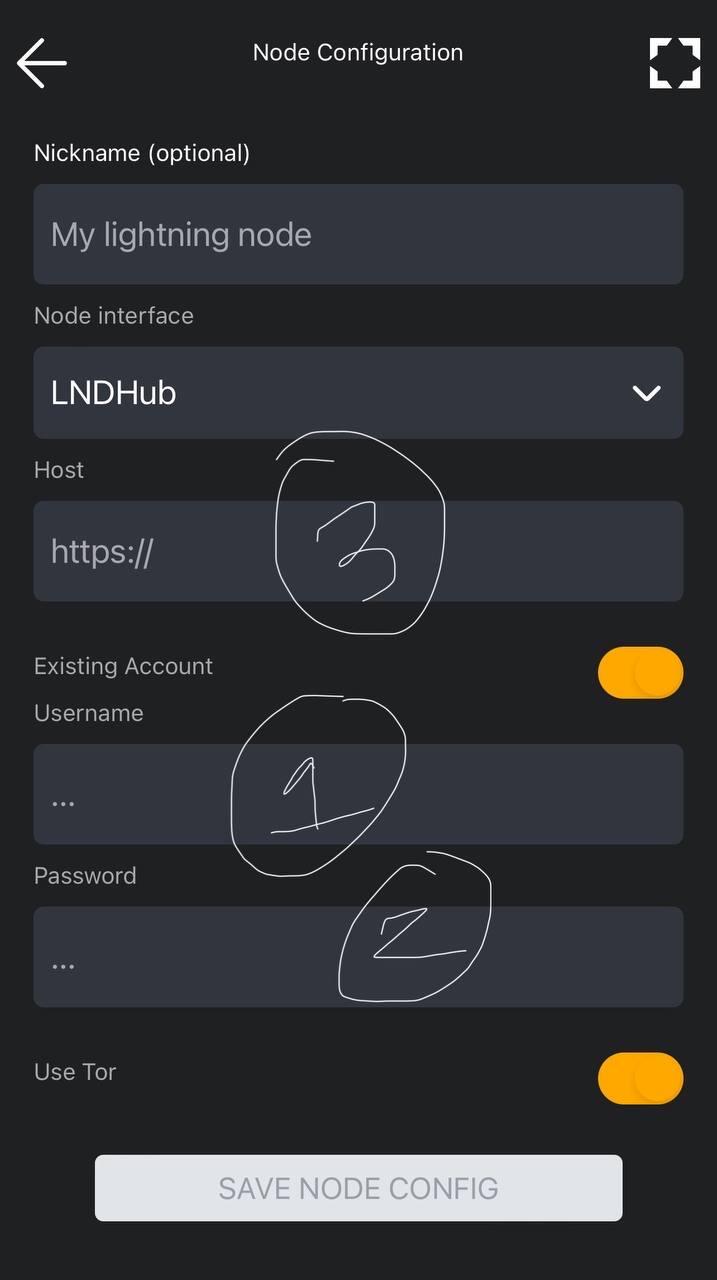
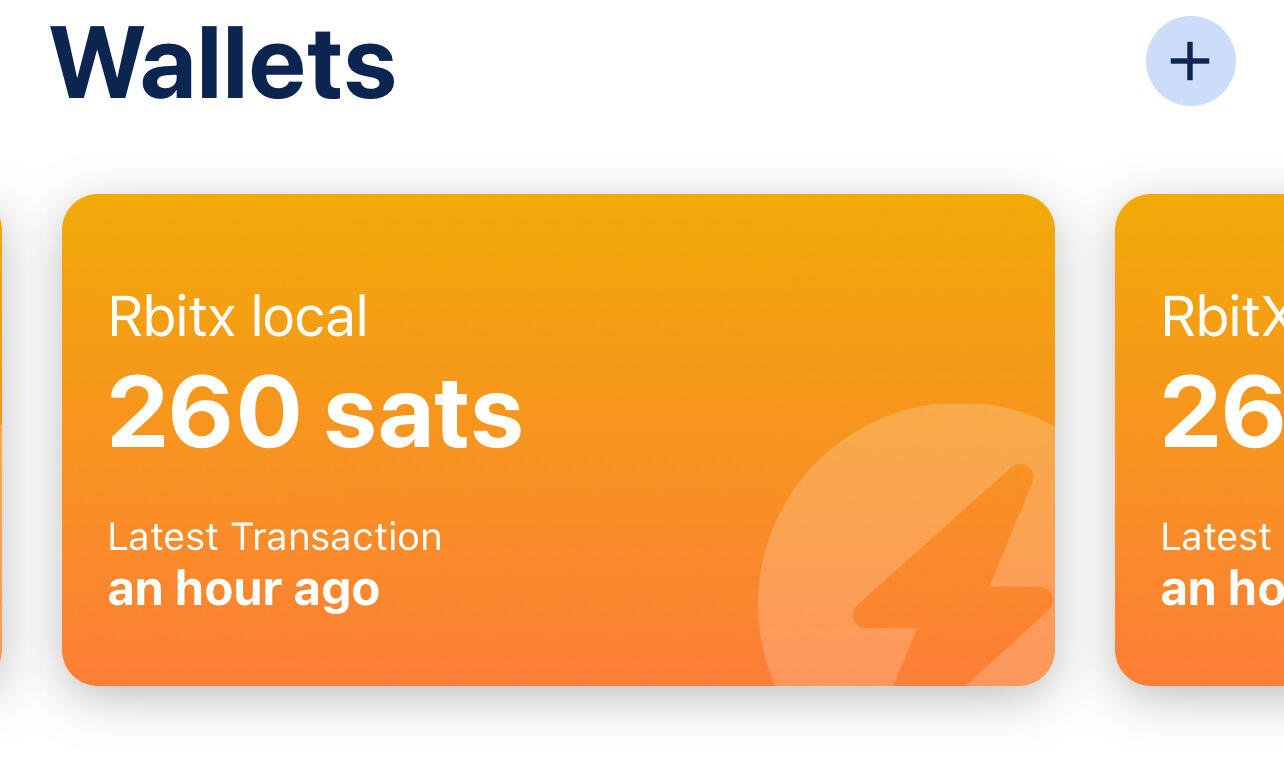
Como importar tu cuenta Lightning de bluewallet a Zeus Bluewallet ya no posee la función Tor por lo tanto ya no se puede conectar a nuestro nodo por este medio. Nuestras cuentas ya existentes no podrán sincronizarse y no podremos usar nuestros sats. Zeus posee la función Tor y podemos importar la cuenta existente conectándonosla a muestro nodo y podes seguir usando. Procedimiento En la aplicación Zeus en configuración presione el signo "+" seleccione LNDhub, seleccione Tor y seleccione cuenta existente, (vamos a importar la billetera Bluewallet existente) con esto importaremos todos los fondos existentes que teníamos. -En bluewallet copie la dirección de la cuenta En la cuenta presionar "..."> exportar/copia de seguridad La dirección se verá así. E.g. lndhub://123abc:456defg@http://toraddress.onion lndhub://usuario:contraseña@http://toraddress.onion ver imagen, (1) en nombre de usuario coloque los números y letras antes de ":" (2) la contraseña son los números y letras después de ":" y antes de @ (3) host es la dirección tor después de @ image
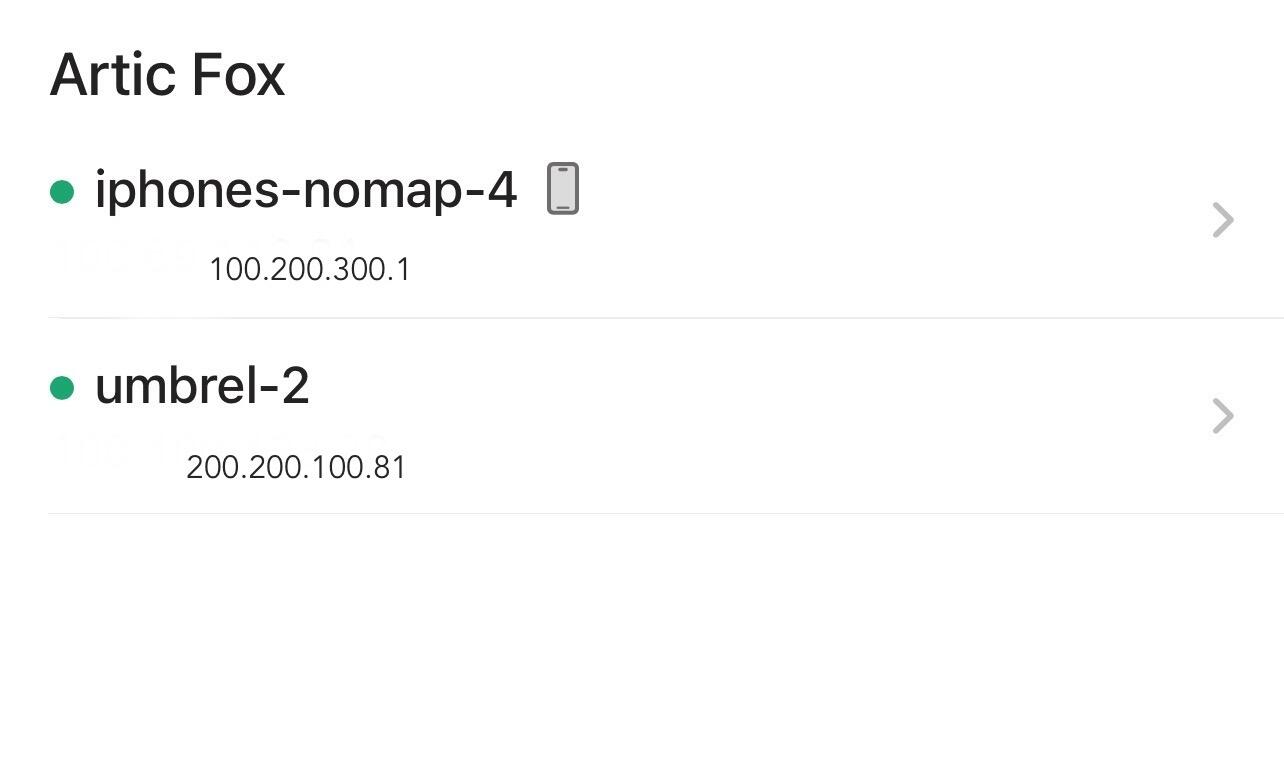
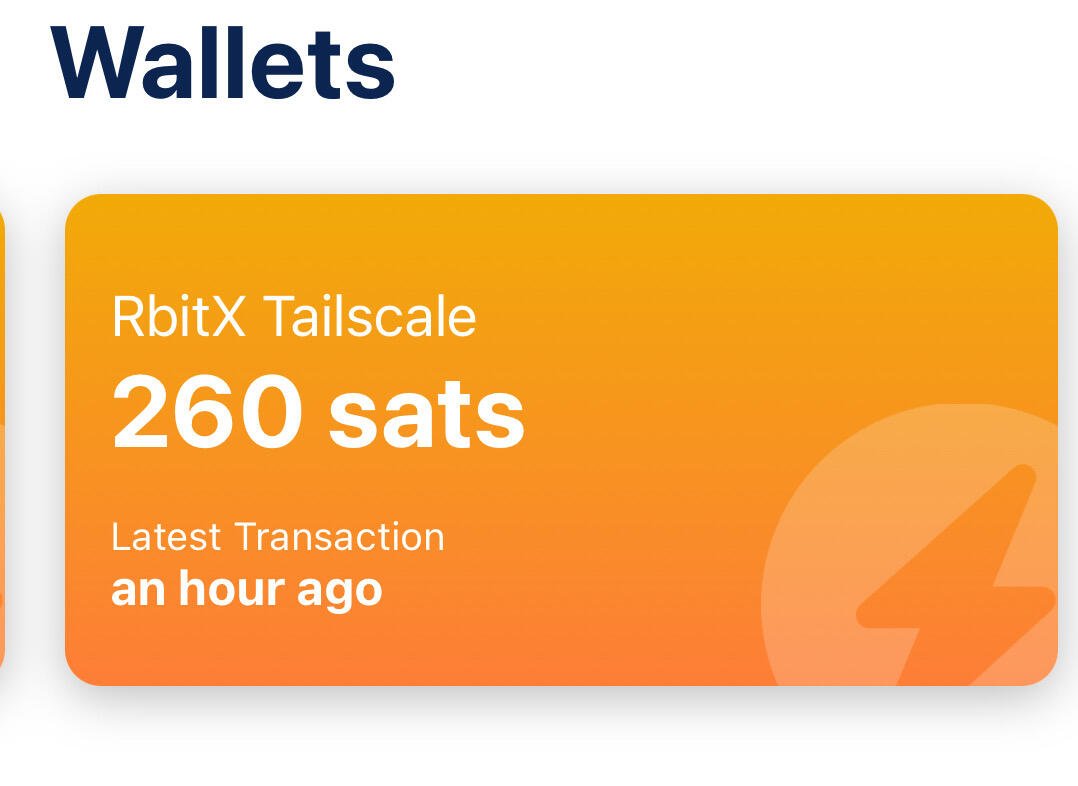
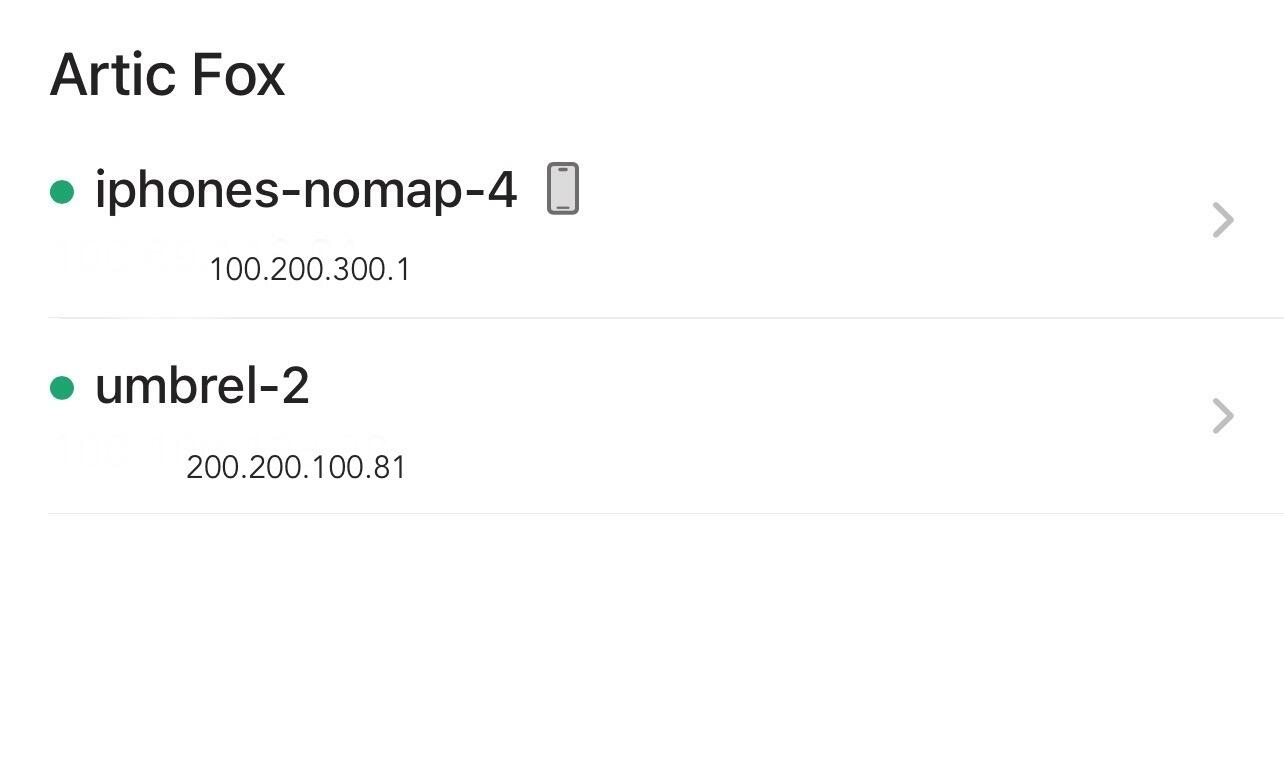
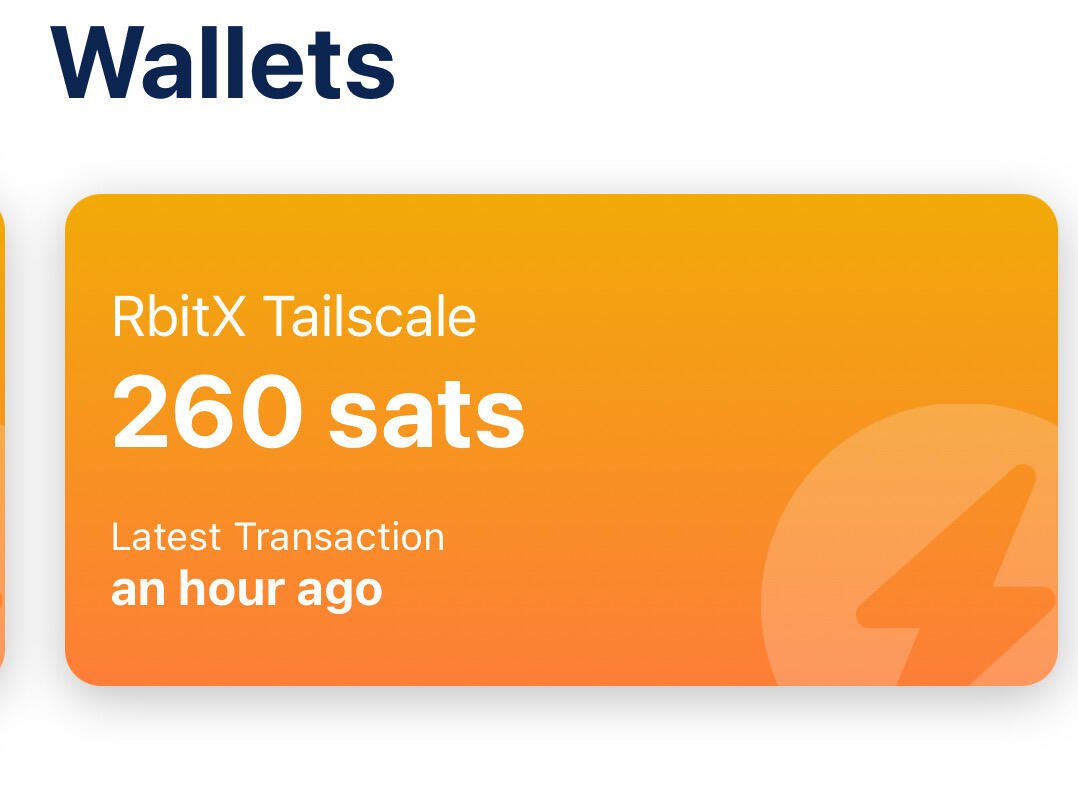
How to create a Lightning account connected to your node using Bluewallet and Tailscale. Pre requirements -bluewallet -tailscale -static address for the node Procedure. 1) install the Bluewallet app on your node and your smart device. 2) install Tailscale on your node, it will ask you to create an account using email. Install the application on your smart device and use the same email that you used on your node. 3) on your smart device open the Tailscale application and log in, you will see two devices connected with their own IP (your node and your cell phone, in my case), press the name of your node and your addresses will appear, IPV4, magicdns, IPV6, in addition to the expiration of your access key. Test We are going to copy and paste the IPV4 address into your browser, the log in of your node should appear, in my case it is umbrel. With this we know that there is a connection with our node. Connect tailscale to bluewallet -on our device we open the Bluewallet application and select the 3 dots “…” in the upper right corner (settings) > Network> Lightning settings > paste the IPV4 address and add at the end: 3008 is the port that Bluewallet uses on our node. You can also use magicdns and add the port :30008 at the end. e.g. http://200.200.100.81:3008 Create accounts We can now create accounts connected to our node using tailscale. In bluewallet >press the “+” sign> lightning>create A QR image will appear with an address at the bottom, we will use it later to create the same account but with a local network. E.g. lndhub://user:password@http://host:port lndhub://numbers and letters:number and letters@http://IPV4:3008 Create the same account but on a local network Once the account with tailscale connection is created, we can recreate the same account. In our new Lightning account we press “…”> export/backup> copy the account We import the existing account but we will change the host to the local umbrel host, for that we go to the “+” sign in bluewallet > lightning > import Wallet > we paste the backup of the tailscale account and modify the end with our local umbrel ip . E.g. lndhub://user:password@http://host:port lndhub://numbers and letters:number and letters@http://umbrel.local:3008 lndhub://numbers and letters:number and letters@http://10.90.87.191:3008 You already have the same account on the local network and with tailscale. Important considerations -Accounts with IPv4 only work and are updated when tailscale is activated. -tailscale keys expire, so it is good to create the same account on the local network and then modify it with the new IPv4 that is generated after the previous one expires. -The account may cease to exist and with it your sats if the node ceases to exist, an account for personal use is recommended.

Como crear una cuenta Lightning conectada a tu nodo usando Bluewallet y Tailscale. Prerequisitos -bluewallet -tailscale -dirección estática para el nodo Procedimiento. 1) instalar la aplicación Bluewallet en tu nodo y en tu dispositivo inteligente. 2) instalar Tailscale en tu nodo, te pedirá hacer una cuenta usando correo electrónico. Instala la aplicación en tu dispositivo inteligente y usa el mismo correo que utilizaste en tu nodo. 3) en tu dispositivo inteligente abre la aplicación Tailscale y log in, veras dos dispositivos conectados con su propia IP (tu nodo y tu celular, en mi caso) , presiona el nombre de tu nodo y te aparecerá tus direcciones, IPV4, magicdns, IPV6, ademas de la expiración de tu llave de acceso. Test Vamos a copiar y pegar la dirección IPV4 en tu navegador, te debería de aparece el log in de tu nodo, en mi caso es umbrel. Con esto sabemos que si existe una conexión con nuestro nodo. Conectar tailscale a bluewallet -en nuestro dispositivo abrimos la aplicación Bluewallet y seleccionamos los 3 puntos “…” en la esquina superior derecha (settings) > Network> Lightning settings > pegamos la dirección IPV4 y agramaos al final :3008 es el puerto que utiliza bluewallet en nuestro nodo. También se puede usar magicdns y agregarle el puerto :30008 al final. e.g. http://200.200.100.81:3008 Crear cuentas Ya podemos crear cuentas conectadas a nuestro nodo usando tailscale. En bluewallet >presionar el signo “+”> lightning>create Te aparecerá una imagen QR con una dirección en la parte de abajo la usaremos mas adelante para hacer una cuenta igual pero con red local. E.g. lndhub://usuario:contraseña@http://host:puerto lndhub://numeros y letras:numero y letras@http://IPV4:3008 Crear la misma cuenta pero en red local Una ves creado la cuenta con conexión tailscale podemos recrear la misma cuenta. En nuestra nueva cuenta Lightning presionamos “…”> export/backup>copiamos la cuenta Importamos la cuenta existente pero le cambiaremos el host por el host local de umbrel, para eso nos dirigimos en bluewallet al signo “+” >lightning> import Wallet> pegamos la backup de la cuenta tailscale y modificamos el final con nuestra ip local de umbrel. E.g lndhub://usuario:contraseña@http://host:puerto lndhub://numeros y letras:numero y letras@http://umbrel.local:3008 lndhub://numeros y letras:numero y letras@http://10.90.87.191:3008 Ya posees tu misma cuenta en red local y con tailscale. Consideraciones importantes -las cuentas con ipv4 solo sirven y se actualizan cuando tailscale esta activado. -las llaves de tailscale caducan, por eso es bueno crear la misma cuenta en red local para luego modificarla con la nueva Ipv4 que se genere después de caducar la anterior. -la cuenta puede dejar de existir y con ella tus sats si el nodo deja de existir, recomendable cuenta de uso personal.
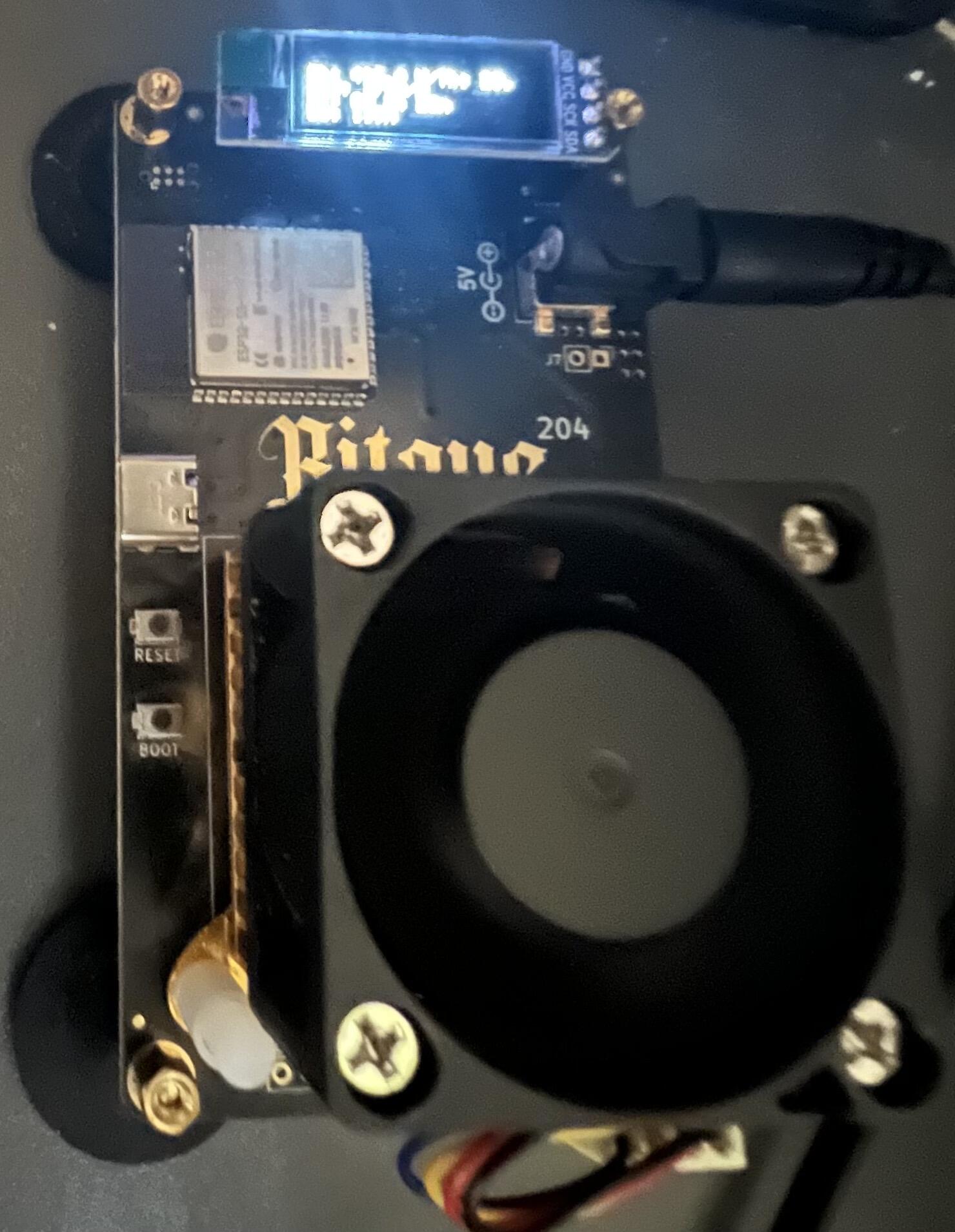
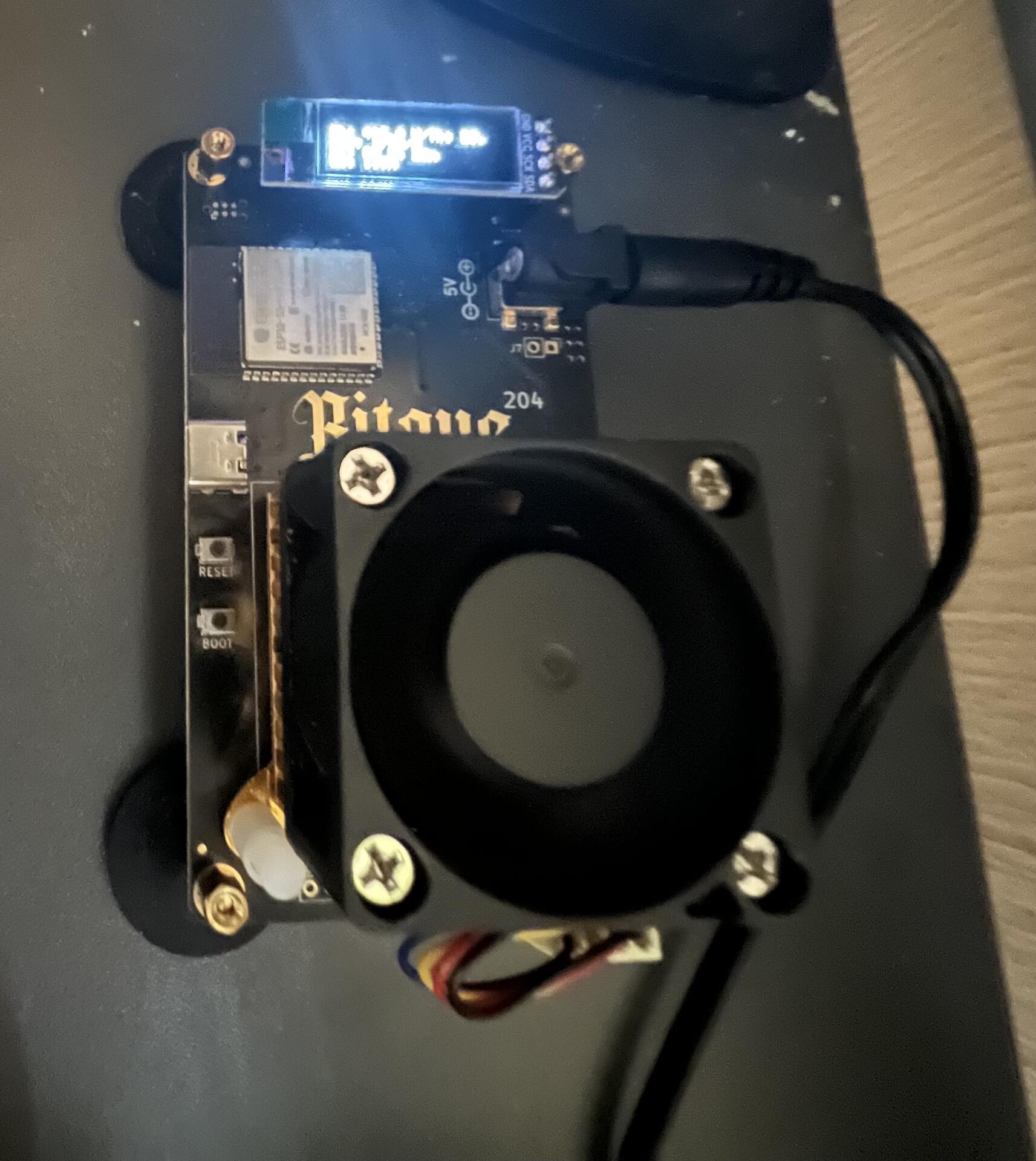
I bought a bitaxe to learn about mining, at first I connected it with public-Pool, obviously I don't expect to earn Bitcoin by mining with a bitaxe. I found out that Braiins Pool now has Lightning payments so I decided to create a Braiins account and connect my bitaxe. Guess who is earning 30 sats a day 🙃😎
Compré un bitaxe para aprender sobre minería, al principio lo conecté con público-Pool, obviamente no espero ganar Bitcoin minando con un bitaxe. Me enteré que Braiins Pool ahora posee pagos Lightning así que decidí crear una cuenta en Braiins y conectar mi bitaxe. Adivinen quien está ganando 30 sats diarios 🙃😎