## My Favorite Nova 8 Beta Features[Nova Launcher](https://play.google.com/store/apps/details?id=com.teslacoilsw.launcher ) has been around for well over 12 years at this point and has been the number one ranked 3rd party home screen replacement app in the [Google Play Store](https://play.google.com/ ) for most of that time. Nova has tons of features that users find useful when it comes to various ways they can customize their home screens and even app drawers. Today, I’m going to give you my top three favorite Nova 8 Beta features that I use and enjoy the most. One thing to note about these features is that they might require you to purchase and to use [Nova Launcher Prime](https://play.google.com/store/apps/details?id=com.teslacoilsw.launcher.prime ). Currently the price for Nova Launcher Prime is $4.99 USD. ## Swipe Up And Swipe Down On App IconsI try to keep my home screen relatively clean, as you will see by the screenshot below. While yes, I have a few icons, but I certainly don’t have a lot. Those that I do have, often do more than just launch the app icon that you see and click. For instance, my Mastodon icon that you see on the bottom row, second from the right, launches Mastodon if you click it. The cool thing here is, if you swipe down on that app icon, it will launch Instagram. You can see that I have this setup by long pressing the icon and clicking Edit(pencil icon). You’ll also notice, as mentioned in the section title, you can set a Swipe Up action on any icon as well. While certainly handy, I don’t use the swipe up action too much as swipe down is more of a natural feel for me. It’s worth noting that for swipe up and swipe down you can set it to launch apps, Nova Actions or even shortcuts for various other apps. The swipe up and down on app icons can be a very useful feature and something I use all day, every day.## Nova Search Micro-resultsThis is a feature that’s not really advertised or mentioned much of anywhere, but back when Nova 7 was in very early beta, or maybe even alpha stages, Kevin added something really fun and neat to Nova’s search and those are called Nova’s micro-results. As you can see by the couple of screenshots below, I have used the Nova search bar on the home screen, though this works from the app drawer too if you have a search bar added there, you can search for something like 32F, or any temperature and it will convert it to 0C in the results. You can do the same for something like 50ft and other things. The list of micro-results below is a pretty complete list of what you can do within Nova’s search bar if you’re using Nova 7 or higher. It’s certainly not a complete list as I believe there are other things such as moon phase and it will tell you the current phase of the moon.Caclulator (2+2)Unit converter (10F or 10oz to g)Open URL in (<a href="https://novalauncher.com/" target="_blank" rel="noreferrer noopener">https://novalauncher.com/</a> and it'll let you pick which web browser)Maps for addresses (1234 W State St)Call/SMS for phone numbersDirect links for package tracking numbersDirect link for flight tracking numbersDirect link for Bitcoin/Ethereum addresses (blockchain.info)## Nova Gestures & InputsThis has been around for many years, so it’s not necessarily new in Nova 8 Beta, but it’s a feature, or set of features if you will, that I have used extensively for years. That’s Nova’s Gestures & Inputs. Things like swipe up, swipe down, two finger swipe up, Pinch In and others. All of these can be done on Nova’s home screen and like the swipe actions on icons, you can configure them to open specific apps, perform certain Nova Actions or to perform shortcuts to various other things that other apps offer. While not an unlimited amount of things you can do here, the options are very numerous. My most used Nova gestures are swipe up for Nova Settings and Double Tap to access System Settings. These are things I’m always having to access since I work for Nova and do a lot of testing of various different things not only for myself, but for users who email me with issues or questions. Again, such a powerful feature of Nova that so many users don’t really take advantage of or don’t really understand what all they allow you to be able to do. These are my top three favorite features of Nova Launcher 8 Beta. While they aren’t specific to Nova 8 Beta itself, it’s the current beta version that we are working on and it’s what I’m using on a daily basis on my Pixel 8 Pro. If you are interested in using Nova 8 Beta versions, you can either Join The Beta for Nova Launcher via your device in the Play Store, or you can download the APK and install it manually from here: Please make sure to grab the latest beta version, which as of this writing is Nova 8.0.14. If you have questions or comments, please don’t hesitate to ask me via the comments below and I’ll be happy to answer anything I can. Make sure to follow Nova Launcher on Mastodon here: [Nova Launcher](https://allthingstech.social/@novalauncher ) or you can follow myself, Cliff Wade, via Mastodon here: [Cliff Wade](https://allthingstech.social/@cliffwade ). #AllThingsTech #Android #Apps #Nova #NovaLauncher #Smartphones #Technology image
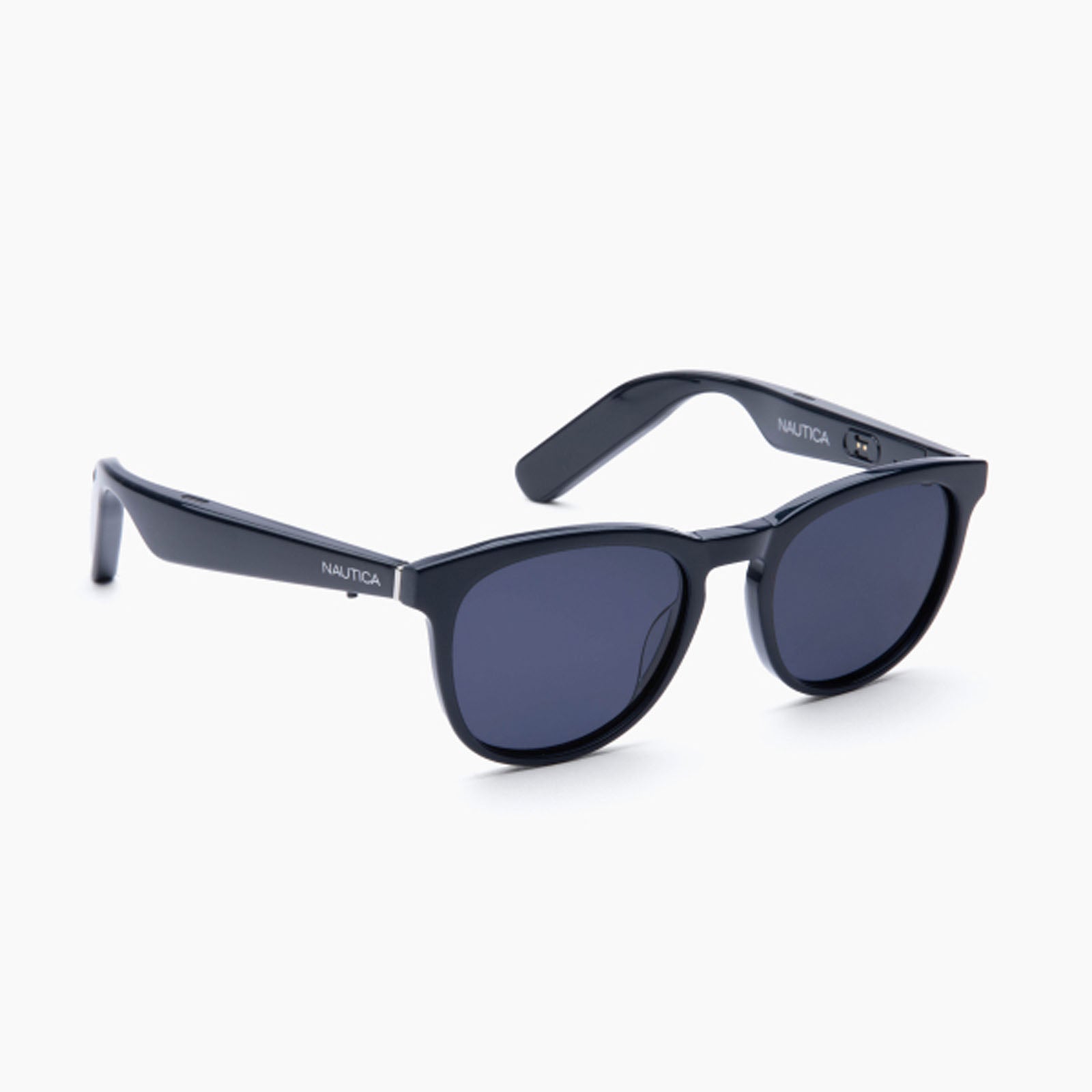
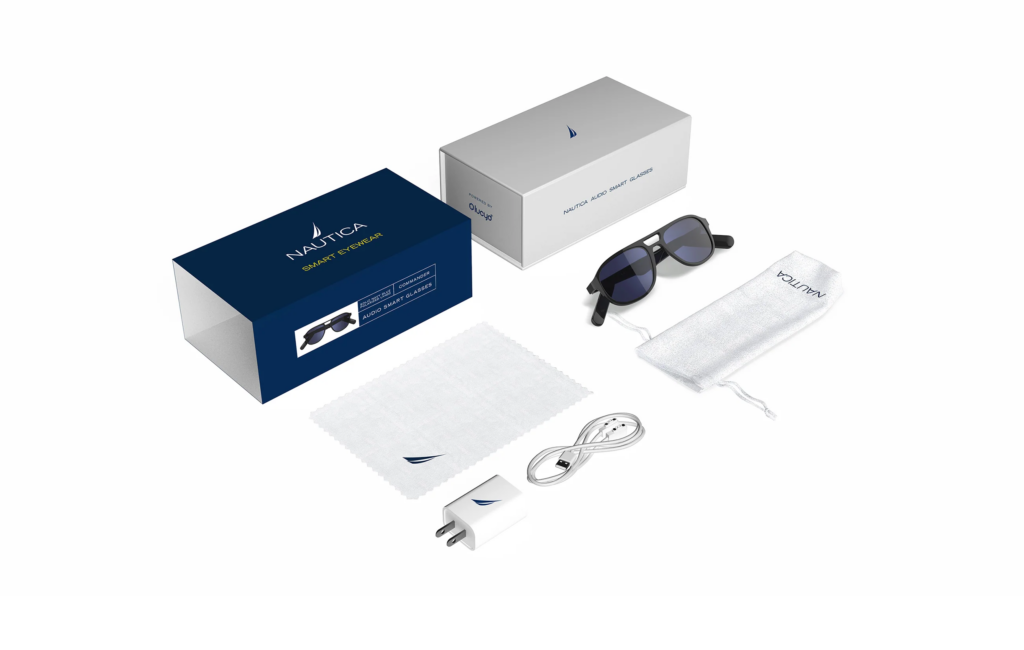
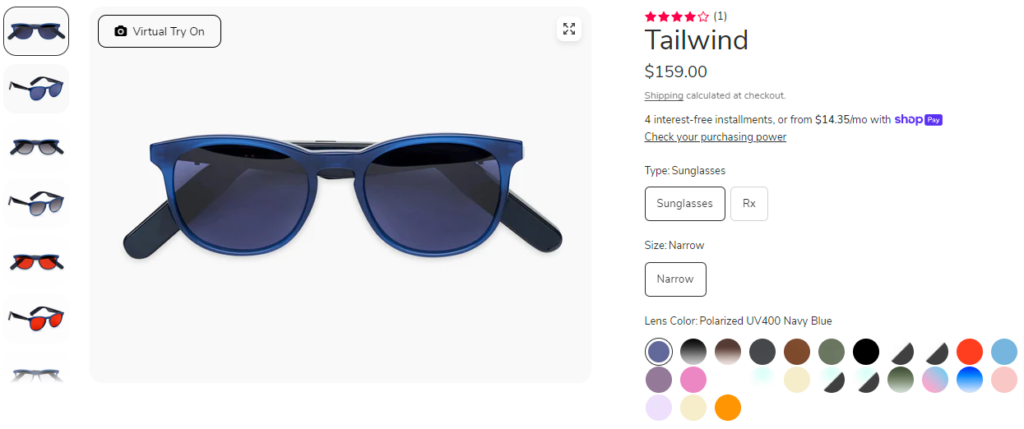
## Review: Nautica Tailwind Smart EyewearToday I’m going to take a look at the new [Nautica Tailwind Smart Eyewear]( ) that look like ordinary glasses, or even more like sunglasses, that feature a built-in microphone and speakers. These allow you to do things such as listen to music, take calls, send text messages and other things. ## What’s In The Box?<li>Nautica Tailwind smart glasses</li><li>Charging cable with USB-A</li><li>Charging cable wall adapter</li><li>Cleaning cloth</li><li>Carrying bag</li><li>Instruction booklet</li>## Design And SpecificationsThis is Nautica’s first dive into the smart eyewear category of things. [Nautica has partnered with Lucyd]( ) to bring a stylish pair of smart glasses built around Lucyd’s technology of glasses that is an industry leader. The Nautica Tailwind use Bluetooth to connect to your phone which allows you to hear notifications, music, phone calls all while commanding your phone’s powerful Assistant, which will be Google Assistant if you’re using Android or Siri if you’re using iOS. The glasses come equipped with open-ear headphones and the microphone built right into the stylish glasses themselves. The Nautica smart glasses start at a good price of $159 and you have a choice of 8 different frame styles and more than 100 types of customizable lenses, including the option to add a blue light blocker for indoor use. I was sent the Nautica Tailwind in a Solid Navy Blue and Polarized UV400. As you can see by the image below, there are 25 different colors that you can choose from for the frames themselves. A very impressive selection in my opinion. Lucyd also allows you to add your own Rx prescription to the glasses if you need or want to do that. This option is an additional $35, which would bring the total price of the smart glasses to $194, which is still in my opinion a pretty fair price. For comparison here, the Amazon Echo Frames, third generation, start at $270 and that doesn’t include prescription lenses of any kind. Lucyd states that the Tailwind are made for most women and men with narrow faces, small to medium sized heads or even for youth who would be wearing them. While Lucyd didn’t ask me what size I needed or wanted, the Tailwind actually fit really good for me personally so I feel they made the right, lucky, choice. Acetate round frame with 90 degree 5-barrel hinge, and no extension piece on the front-plate, and light gray stripes. You can see sizing details below for the Nautica Tailwind.<li><strong>Frame Width</strong>: 139mm</li><li><strong>Lens Width</strong>: 53mm</li><li><strong>Temple Size</strong>: 150mm</li><li><strong>Bridge Size</strong>: 20mm</li> All styles, at a glance, look like ordinary glasses. The incognito smarts are an attractive draw to the line, as you have to look closely to notice the built-in technology. Two of the four speakers sit on top of the temples, with the other two located on the bottom of the temples, near where they rise over your ear. A small, metallic button juts out from the bottom of each temple near the front of the frames, and pinholes for the noise-canceling microphones sit just behind the buttons. Small charging contacts sit on the inside of each temple. One feature of the Nautica smart glasses worth noting here is that they come with an IP56 water-resistance rating. What this means is they can withstand splashes of water from any direction and will resist harmful deposits of dust. Since I mentioned the Amazon Echo Frames above, it’s worth noting that they offer a lower IPX4 rating compared to these that I have. The battery life of the Nautica smart glasses is supposed to be 12 hours according to the specifications listed by Nautica. I tested this across four different uses of the battery being full until dead and my average use was just over 13 hours across all four uses. That was with me listening to music and messing around with all the different features of the device. While doing all of this I had the volume set at 100%, which can often use a bit more battery. Overall, just over 13 hours of average use is very impressive in my book.## Setup And ControlsSetting up Nautica’s smart glasses takes a matter of moments, as they arrive partially charged and don’t need to sync with the Lucyd companion app to perform most of their capabilities. You simply turn them on by holding both buttons for three seconds, connect them to your phone using your device’s Bluetooth menu, and you’re done. The included charging cable splits into two magnetic contacts that attach to both temples. While the glasses are charging, a red light near the charging contacts stays lit. The light turns off once they’re fully charged. If you decide to plug them in before you do the initial setup, they will automatically turn on when you remove them from the charger. Once you have powered them on and paired them your device should recognize them as a pair of headphones. For me, in my Bluetooth menu they are listed as Nautica Eyewear and have a little headphone icon next to them. Once connected, you can use your phone to control music playback and volume on the glasses, or use their built-in buttons on the bottom of the arms. Click the left button once to turn the volume down. Double-click to play or pause a track. Click three times to advance the track. On the right, click once to turn up the volume. Double-click to access the voice assistant on your phone. Click three times to go back a track. When your phone rings, you can double-tap either button to answer or hold either button to decline the call. Hold both simultaneously for three seconds to power the glasses on, or seven seconds to turn them off. Having the buttons to control these things is very simplistic which is something I do happen to appreciate. However, I really wish they would have included separate buttons for at least the volume controls. I think this would have made controlling things a bit easier as adjusting the volume currently can often trigger other commands, which as you can imagine, can get frustrating.## ChatGPT FunctionalityTo access the [ChatGPT](https://chat.openai.com/auth/login ) features of the Nautica smart glasses, you must connect them to an iOS device and use the Lucyd companion app. While you can use the Lucyd app on Android to access and control ChatGPT, it’s worth noting that the glasses aren’t involved in any way by doing this. Luckily I also happen to have an iPhone 15 Pro Max that I could pair the Nautica Tailwind to and test the ChatGPT side of things, which is one of the biggest features of these glasses to begin with. When paired with an iOS device, you can use the glasses to talk to ChatGPT after one additional setup step. Open the Lucyd app on your iPhone, double-click the right button on the glasses to access Siri, and then say “Lucyd.” The app will prompt you to add a Siri shortcut for the Lucyd command. Accept the pop-up request and you’re good to go. Setting up the integration on iOS is simple enough. However, every time you want to interact with ChatGPT with your voice, you need to repeat most of the same process: Double-click the right button to talk to Siri, say “Lucyd,” and state your prompt. It’s tedious, especially if you use the feature frequently.## Sound QualityWhile not surprising due to the form factor we’re dealing with here, the sound quality is very underwhelming in most every sense of the way. I tested the Nautica Tailwind smart glasses in an absolutely quiet setting, as well as with the TV going in the background and then in a bit busier setting with a couple of friends talking to each other. Each of these scenarios was pretty difficult to hear what the glasses were saying, even in the quietest location. I thought this could be because of my older age and the fact that my hearing isn’t as good as it once used to be. So I handed them to my wife and had her do a few things and she came back with the same conclusion as I did in each setting. While these smart glasses happen to have four speakers, when the voice commands are being done, it only uses the front two speakers for some reason. I feel if it were to use all four speakers, sound quality might be a bit more desirable, especially in the quietest of settings. Under the tips section of the manual, it says, “If you’re having a hard time hearing someone on a phone call, you can cup your hand over your ear to amplify the sound greatly. It’s still more comfortable than holding a phone to your ear!” This doesn’t really give me confidence in using the glasses for phone calls on a regular basis. I can’t imagine doing this for a lengthy phone call such as 20+ minutes. Just not an ideal thing to have to do. Listening to music on the Nautica Tailwind simply isn’t enjoyable either. There’s no bass, no drums, just flat, bland, boring music. This lead to me do some testing with tracks that don’t have a fair bit of bass and the experience was slightly better, but not by much. Unfortunately for Nautica and Lucyd, I get a better music experience with my $7 earbuds that I’ve used for several years now. ## Final ThoughtsWhile the price of the [Nautica Tailwind]( ) is an affordable $159, overall in my opinion it’s really not worth it. The number one reason here is the overall sound quality. It’s just lacking in every way possible and a device like this really needs to have good sound quality simply because of what they are and what they do. I think Nautica and Lucyd really miss the mark here and I’d certainly be interested in seeing a newer model of these after Nautica and Lucyd get feedback from reviewers like myself on where they missed the mark. #AllThingsTech #Android #Nautica #SmartEyewear #SmartGlasses #Tailwind #Technology
## Mobile Apps I Use The Most; The Android EditionToday I’m going to talk about the Android apps that I use most often on my device or along side of my device. I was inspired by [jcrabapple’s]( ) post that he did titled: [More of my Favorite Apps](https://cool-as-heck.blog/posts/more-of-my-favorite-android-apps ). These are apps that I highly recommend to others to use for various reasons. These apps are often apps that I’ve used for several years now, though some are apps that I’ve just recently started using that work best for me personally. All of these apps I currently have installed on my [Pixel 8 Pro](https://store.google.com/product/pixel_8_pro ) running Android 14 Beta QPR3.## [Nova Launcher](https://play.google.com/store/apps/details?id=com.teslacoilsw.launcher ) And [Nova Launcher Prime](https://play.google.com/store/apps/details?id=com.teslacoilsw.launcher.prime )Nova Launcher and Nova Launcher Prime are two apps I’ve been using for 11+ years. For that don’t know, Nova Launcher is a 3rd party home screen replacement app so that you don’t have to use the stock launcher on your device. Along with Nova Prime, Nova Launcher provides a lot more customization for you to get the look and layout that you want. If you’ve never given Nova Launcher a try, it’s an app that I personally install as the very first app on any new Android device I get. ## [Solid Explorer](https://play.google.com/store/apps/details?id=pl.solidexplorer2 )Solid Explorer is a file management app inspired by the old school file commander applications. Solid Explorer lets you navigate to files stored on your device and automatically organizes them into collections. You can view, delete, move, rename or share any files. It also allows you to quickly find the files you need through indexed search with filters. This is another app I’ve used for well over 10 years and is one of the first apps to get installed on any device I own. ## [Vivaldi Web Browser](https://play.google.com/store/apps/details?id=com.vivaldi.browser )Vivaldi has become my browser of choice as of about 6 – 7 months ago. For me, it does so many little things that other browsers don’t do when it comes to browsers on the web. While I don’t use a web browser often via my Android device, I choose to use the same thing on my mobile devices that I use via the PC. Vivaldi allows me to sync everything from the PC to the mobile version and that just makes using it that much easier. ## [Trunks For Mastodon](https://play.google.com/store/apps/details?id=com.decad3nce.trunks )Trunks for Mastodon is the best way to experience Mastodon any of your devices, at least on the Android side of things. With its rich features and intuitive interface, trunks makes it easy to stay connected with your friends, follow your favorite topics, and discover new content. The developer is constantly adding new features and fixing bugs. Trunks is also available via the web as well as iOS, which is something a lot of users enjoy as they can use it everywhere. ## [Proton Mail](https://play.google.com/store/apps/details?id=ch.protonmail.android )Like Vivaldi above, Proton Mail is something I just recently switched to within the last couple of months or so. I switched from Gmail to Proton Mail because I wanted something a bit more secure and something that would allow me to have a bit more control over my email compared to what Gmail offers. Proton Mail is encrypted email from Switzerland. Used by millions worldwide, our all-new email app protects your communications and has everything you need to easily manage your inbox.## [Aegis Authenticator](https://play.google.com/store/apps/details?id=com.beemdevelopment.aegis )Aegis Authenticator is a free, secure and open source app to manage your 2-step verification tokens for your online services. Similar to Authy or Google Authenticator that most people are familiar with, Aegis is another two-factor authentication app that helps you keep all of your online accounts safe and secure from possible intruders. The number one thing I like about Aegis is that you can import/export your information to and from other similar apps, assuming those apps allow you to export things. Aegis is one of the first 5 – 7 apps I install on any new device as I often need it to be able to log into other accounts as I’m setting things up.## Final ThoughtsThere are many other apps that I use daily and would suggest others to at least give a try as well. The ones above are usually my first set of apps that I install as soon as I possibly can any time I get a new device. Be it because I need them to be able to log into other apps, or because it makes things easier and quicker for setting up a new device. Also to note here, is that some of these apps are paid for apps, or also have a paid version. I urge everyone to support the developers of the apps you use often and regularly. This helps ensure those apps continue being developed and updated on a regular basis. *Disclaimer: The views expressed in this blog post are solely those of the author and do not represent any official endorsement by Nova Launcher, Solid Explorer, Vivaldi, Proton Mail, Trunks for Mastodon, Aegis or any other apps mentioned.* Image Source: [Google Play Store](https://play.google.com/ ) #AllThingsTech #Android #Apps #NovaLauncher #Smartphones #Technology image
## My Phone’s Home Screen; Explained In DetailI am often asked what my phone’s home screen looks like or what things I have on my home screen, so today, I’m going to break it all down for you. Let me note one thing here is that some of the features that I make use of requires the purchase of [Nova Launcher Prime](https://play.google.com/store/apps/details?id=com.teslacoilsw.launcher.prime ), which I you can grab from the Google Play Store for just $4.99 USD. Let me start with the basics of what I use as far as a mobile device. For today’s home screen post, I’ll be showing off my Pixel 8 Pro that I use quite regularly. I’m currently running Android 14 Beta QPR3 as I am almost always using beta software of some sort. I choose to use [Nova Launcher](https://play.google.com/store/apps/details?id=com.teslacoilsw.launcher ) with Nova Launcher Prime as my launcher simply because it works best for me. Not to mention, I happen to work Nova Launcher and have for 8 1/2 years now. The icon pack I use in the screenshots that you will see below is the [OneYou Icons by PashaPuma Designs](https://play.google.com/store/apps/details?id=com.pashapuma.oneyou.icons ). As far as widgets on the home screen, I don’t use any. The search bar you see at the top of the page is actually Nova’s search bar and I use that extensively for searching for my apps that aren’t on my home screen. The reason I search for my apps is because I don’t use the app drawer any longer, though I did for a lot of years. Searching for apps via Nova’s search bar is just much quicker and fewer taps or screen touches in most cases. Now that we have the basics out of the way, and links to the things I use, let’s get to the meaty details and the things y’all most likely care about the most, my actual home screen. As you can see, compared to a lot of people, my home screen is pretty empty and very basic. I only have thirteen icons in total on my home screen, but there’s access to a lot more apps than just those thirteen. I’ll start from the top left icon, [Solid Explorer](https://play.google.com/store/apps/details?id=pl.solidexplorer2 ), and work my way to the right. Solid Explorer itself is a file manager, and then I have swipe a swipe down action set to launch [Proton Drive](https://play.google.com/store/apps/details?id=me.proton.android.drive ). This is a Nova Prime feature that allows you to set a swipe up and a swipe down action on icons to do other things. In my case, I simply have it set to launch other apps. This allows me to keep my screen cleaner and more organized for my liking. You can also set swipe actions to launch shortcuts or Nova actions. Next is the Uber app. I have no swipe actions set on this icon, so we’ll move to the next one which is the [Google Play Store](https://play.google.com ) icon. This one I have a swipe down action set to launch a shortcut to My Apps, which is where you go to see all of your app updates within the Play Store as you can see via the image below. Again, this allows me to access app updates without several clicks. Next up is the Slack icon. Slack is something I use regularly for work but the Slack icon also has a swipe down action to launch Door Dash, since the wife and I order from quite a bit. Then you have Messenger for Facebook, with a swipe down action for [Aegis, which is a Two-Factor Authentication app](https://play.google.com/store/apps/details?id=com.beemdevelopment.aegis ), similar to Google Authenticator and others. Finally on the right side of the top row is Facebook itself. Likely my least used app on the home screen. On the bottom row, again, from left to right, is my phone app, Vivaldi Browser, Proton Mail, Discord, Camera, Mastodon and then Google Messages. The only icon here that has a swipe action, which is again a swipe down action, is the Mastodon icon and the swipe down will launch Instagram. Since I only have one home screen, and have for years, unless I’m testing something for a user, if I swipe from the left side of the screen, I can activate the [Google Discover feed]( ) or the [Smartspacer feed]( ). Smartspacer integration is only available in the Nova 8 beta builds currently, but will also be available once Nova 8 gets to a stable release, which will hopefully be soon. One thing to note here is, if you want the Google Discover feed, you’ll have to install the Nova Google Companion APK manually, which you can get from here: [Nova Google Companion App]( ). I would show a video of me accessing the Smartspacer feed integration, but unfortunately I’m using an internal Nova dogfood build that would show things that we have yet to announce publicly, so you’ll have to use your imagination of how things look and work. As I mentioned early on, I don’t use the app drawer. In fact, I can’t stand having or seeing an app drawer. While I kept mine very well organized with folders and all apps within my folders, it’s just something I don’t care for any longer as I’ve learned to use Nova search for most everything. For me personally, it’s quicker and easier and often just a tap, type one or two letters and then tap the icon I want. This doesn’t work well for everyone, so I encourage everyone to use what they like and what works best and quickest for them. As you can see in the image above, I can type the letters “pi” and find Pixelfed or Pixel Tips. This works very effectively for me and it also gives me other results that I might need to know about, such as a work meeting I have at 1pm EST today. You’ll also notice the search return for pi. These are Nova’s micro-results that we have quite a few of them. That’s my home screen, explained in detail, and how I use it as well as how it works best for me personally. I’ve used a very similar setup for numerous years with only small minor changes here and there. The layout of my home screen icons has been the same dating back some 8 – 9 years and I have no plans to change that layout any time soon. I know exactly where everything is and it’s super easy and quick for me to access what I need at any given moment. If you have questions or comments about my home screen, or just about Nova Launcher/Nova Launcher Prime in general, please don’t hesitate to ask. You can leave comments or questions in the comment area below or you can tag me on Mastodon and I’d be happy to share my thoughts there. My Mastodon account is here: [Cliff Wade on Mastodon](https://allthingstech.social/@cliffwade ). *Disclaimer: The views expressed in this blog post are solely those of the author and do not represent any official endorsement by Nova Launcher or any other apps mentioned.* Featured Image Credit: [Wallbase.cc]( ) Screenshots Credit: [Cliff Wade](https://allthingstech.social/@cliffwade ) #AllThingsTech #Android #NovaLauncher #NovaLauncherPrime #OneYouIcons #Smartphones #Technology image
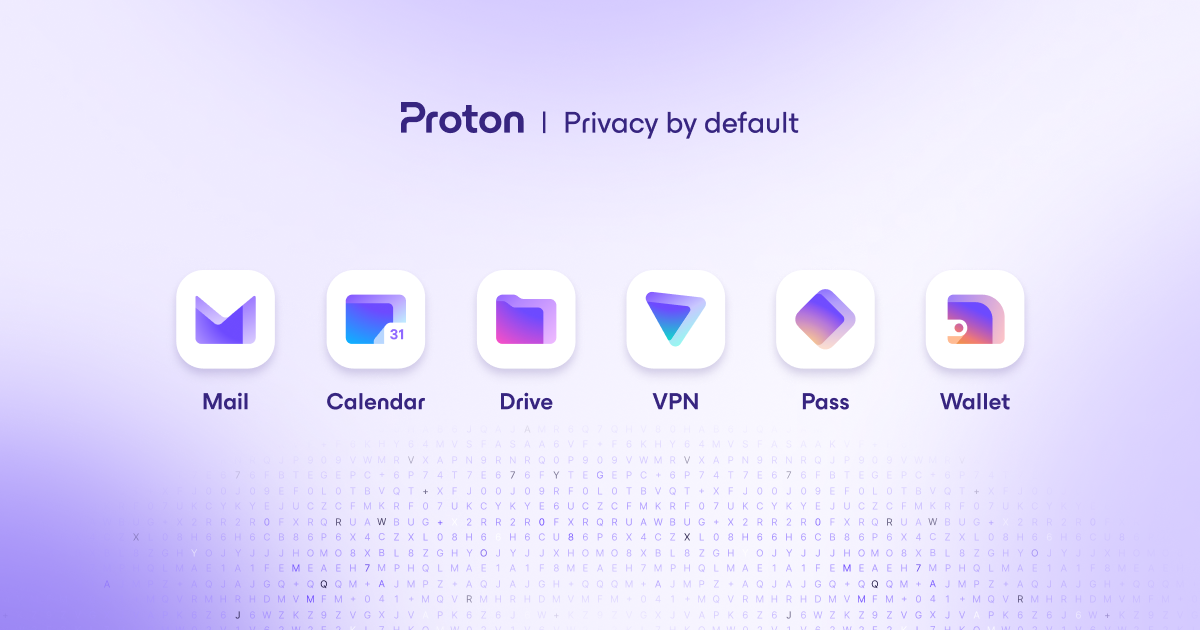
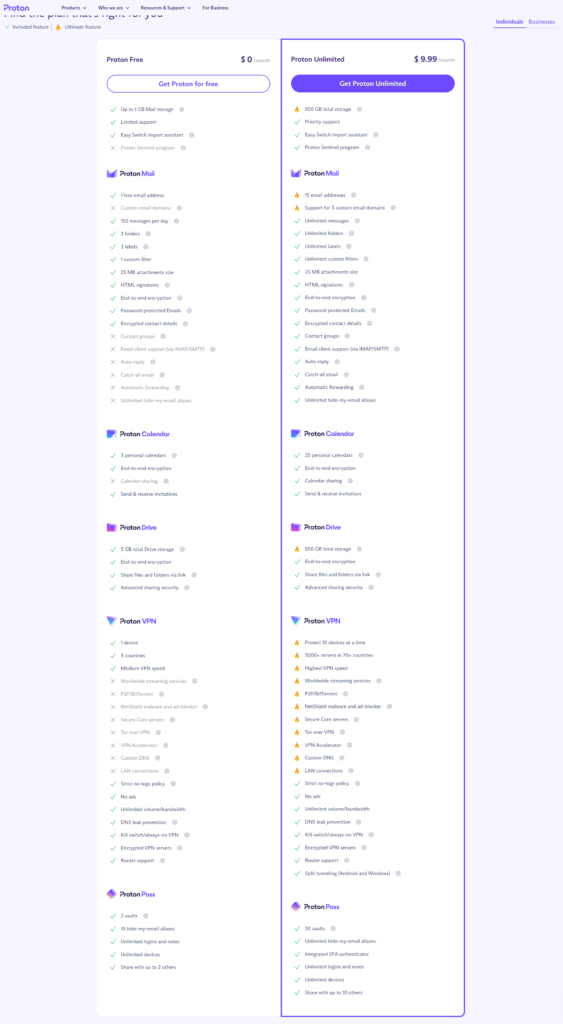
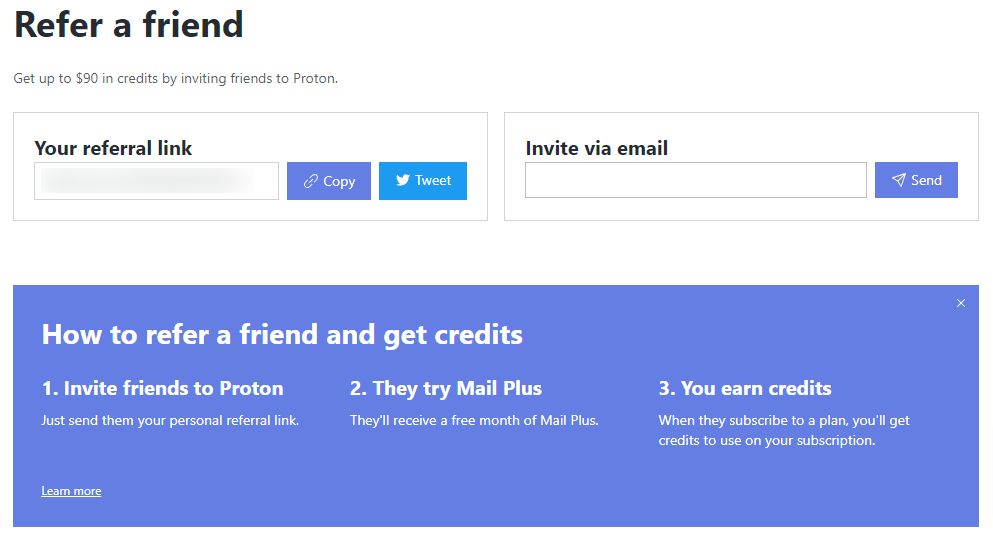
## Why I Switched From Gmail To Proton MailI’ve been using [Gmail](https://gmail.com ) forever. As in, prior to it ever going public. Back when you had to have an invite to get in. Luckily, I knew someone that had gotten in via a Google employee, and they were able to invite me very early on as well. It’s done what I’ve wanted and needed it to do. But now, I’m leaving it behind for greener pastures. The burning questions here are as follows. Why am I leaving Gmail and why am I doing it after 20 years and what email platform will I be switching to? As the title states, I’ve made the switch to [Proton Mail]( ) for a few reasons which I’ll describe below. Not only that, I’ve switched from using a free email service to now using a paid email service. Let’s start off with why I decided I wanted to switch from Gmail at all, since I had been using it for 20+ years, which likely means I have a lot of important stuff stored there. First and foremost, I wanted to start taking my privacy a bit more serious. I’m not trying to go all die-hard here and hide everything from the entirety of the internet, as I simply don’t have the time nor the patience for that. But I want to try and move away from getting served ads and recommended stuff a bit more than what I was. Gmail uses your email to serve you ads and information based on the contents of your email. This means it’s not encrypted as we all know. Proton is end to end encrypted, which means Proton themselves can’t even read your email. In return, this means you don’t get ads or served recommendations based on what’s in your emails. The second reason I’m leaving Gmail after 20+ years, is just that. I’ve had the same email for that long, and as a blogger, my email address is everywhere. I want to change that, but it’s pretty difficult to do with an established email such as my Gmail account. So what better way to do this than to start over and start with a new service that has some really nice features such as Proton. So what is it about Proton that drew me in, and more-so, to a paid version of Proton when I could have switched to a free version? First is all the [features you get]( ). With the free version, you certainly get some nice features. However, for me the number one thing on this list is the amount of storage. 1GB of storage simply isn’t enough for me, and that’s without importing any of my old emails from Gmail over to my Proton account. I purposely didn’t transfer anything over as my Gmail account isn’t going anywhere, so I know I can quickly access it if I absolutely need something from the past 20 years. The 500GB of storage is more my speed. However, I’ve actually got a family plan with my wife now, so we have 3TB of space to share between us, so I’m more than good on space. The second biggest thing that I wanted the paid plan for was the labels/folders feature. I use a lot of labels as I keep my email very well organized. I can tell you, it’s all because of my OCD, but hey, that’s a completely different article from this one! The third feature and certainly is quickly becoming my favorite feature of Proton Mail, is the hide-my-email aliases. This allows me to go purchase something from a website I don’t frequent and use an alias email address so that they don’t have my actual email address and then spam me with their newsletters, special offers, you forgot this in your cart type stuff. If I start getting any of those, I simply delete the alias and nothing else arrives in my inbox from them. Super simple and super efficient. I also like that with a paid Proton plan, you get access to [Proton VPN]( ), [Proton Drive]( ), [Proton Pass]( ) and [Proton Calendar]( ). For me, I don’t care much about the calendar since I’ve never really used calendar stuff within my personal accounts. I was already using Proton VPN, so now I get that bundled in and save a bit of money and have access to more things and more features as you see above. This paid plan gives me access to Proton Drive, which in turn allows me to stop using [Google Drive](https://drive.google.com ) as well and put everything I want into Proton Drive. Simply put, it’s a nice little added bonus. It’s a very similar situation for Proton Pass, which is Proton’s password manager, that happens to work very well. And because I get that for free with my paid Proton plan, I’ve decided to leave Bitwarden behind since I was paying for that as well. Now, everything is bundled into one and makes life so much easier. To me, having all of these options, features and apps available are super nice, even if it is paid for. That alone is something I thought I’d never be doing, paying for email. But as stated in the beginning, I’m trying to take my privacy a bit more serious and I feel Proton allows me to do just that. It’s not full blown by any means, but I feel for me, it’s a great start and this will likely lead to other things that I’ll start doing. One question I’m sure all of you have is, how is the overall service of Proton, especially on the email side? I can say that it feels no different than Gmail as far as the speed of receiving/sending emails, getting notifications for emails and just the user of the features itself. It simply works and it works great. What’s more is, Proton Mail is available on [Android](https://play.google.com/store/apps/dev?id=7672479706558526647 ), [iOS]( ) and the [web]( ). Proton Pass, Proton Drive, Proton Calendar and Proton VPN are available on all of those platforms as well. This makes it easy to use all of the services no matter what device or platforms you choose to use. One last thing that I have discovered about Proton Mail, is how active they are on Mastodon. While I don’t use Twitter/X, it can be difficult to find large companies like this on Mastodon. Proton Mail has an official account there that’s verified, and often responds very quickly and with full information and details. Find them here: [Proton Mail on Mastodon]( ). If you’re looking to make the switch to Proton, feel free to let me know. I can send you an invite code to “refer a friend” and you’ll get one month of Mail Plus for free from Proton. Kind of a hard deal to pass up if you ask me as it allows you to give it a try and see if it’s for you or not. You can read more details here: [Refer A Friend]( ). *Disclaimer: The views expressed in this blog post are solely those of the author and do not represent any official endorsement by Proton or its subsidiaries.* Image Credits: [Proton Mail]( ) #Email #Gmail #Proton #ProtonCalendar #ProtonDrive #ProtonPass #ProtonVPN #ProtonMail #Technology
## Let Me Introduce MyselfHello to everyone reading this! Since we have decided to start over with the AllThingsTech blog, I felt it was only appropriate if I made a little introduction post. Just a few words to let all of you know a little bit about who I am and what I do. So what do you say, shall we get started? As many of you likely know, but for those that don’t, I’m one of the co-admins of the [AllThingsTech.social](https://allthingstech.social ) Mastodon instance along with [Kyle Reddoch](https://allthingstech.social/@beardedtechguy ). AllThingsTech has been around for almost a year now. However, this post isn’t about our instance, it’s to give you some insight into who I am. I guess I could start with the basics. I’m a 52 year old husband to an amazing wife [living in Winston Salem, NC]( ) and am the proud parent of two awesome cats named Bess(15 years old) and Kumquat(4 years old). I was born in Merritt Island, FL, right across from the NASA launch pads, but only lived there until I was about 2 – 3 years old. My parents moved to Houston, TX for the oil boom that was just getting started and to be in a much larger city than Cocoa Beach, FL which is where we were living. I spent all of my childhood and teenage years in Houston. I graduated high school at [Klein Oak High School]( ), the same school that [Jim Parsons from Big Bang Theory]( ) attended. He and I even attended school together for 2 years, as I graduated in 1989 and he graduated in 1991. Small world, wouldn’t you say? After high school, I went on to do adult things and never attended college. I was sick and tired of school by the time I finished high school and wanted to move on in life. Shortly after graduation, myself and my parents would move back to Florida, this time in south Florida around Boynton Beach. My parents would end up getting divorced shortly afterwards and my dad and I would end up moving back to Houston in 1991/1992 as we felt that’s where “home” was. Plus, he was approached by his former boss at McCauley Lumber Co in [Tomball, TX]( ) to come back to work. A deal that we couldn’t pass up. We would stay in Houston and the surrounding areas until September 2007, which Pops and I would then move to [Rome, GA]( ). A place I didn’t really want to be, but it’s where life took us. I ended up meeting what is now my wife in 2013 and we’d get married in 2018. In January 2022, the wife and I would move to Winston Salem, NC which is where I am located at now. Absolutely enjoying this place as it feels like this is where I belong. Let’s go back to the year 2015, back when Google+ was one of the big social media platforms of the time. I stumbled across a post by Derek Ross, who I had followed for years, that he had shared by Kevin Barry, the developer of [Nova Launcher](https://play.google.com/store/apps/details?id=com.teslacoilsw.launcher ). Kevin was looking to hire someone to replace his current customer support person who was moving on to other things. I felt I didn’t have much of a shot at this job, but I decided to send an email Kevin’s way. As they say, you can hit your shot if you never shoot. Almost immediately, to my surprise, Kevin replied to me and wanted to setup a Google Hangouts meeting between us. Two days later we had a meeting and Kevin ended up hiring me on the spot. Little did I know how much my life would change because of this. So what is [Nova Launcher]( ) you ask? It’s the largest and most popular home screen replacement app in the Google Play Store and has been pretty much since the day it was launched publicly on December 13th, 2011. Twelve plus years later, it’s still the most popular launcher in the Play Store. Now you’re asking, what do I do for Nova Launcher? I am the customer support manager who handles all customer support via email and I also own and run the official, verified [Discord server that currently has almost 77,000 members]( ) at the time of this writing. I do other things as well since Nova Launcher was acquired by [Branch Metrics back in 2022]( ), but my job is mostly as I stated above. I’m still the only person who answers emails as well as a bit of social media stuff, mostly on Mastodon where we have a Nova Launcher account. Outside of the work stuff, I’m an avid lover and fan of technology of any and all sorts. Since I work for an Android app, I obviously have a love for Android mobile devices, but I also use Apple’s iOS very regularly as well. I love to play video games and just love to absorb news and information about anything tech related. If it beeps or it goes boop, then my curiosity is piqued. I’m also one who loves music. Since I work from home, I’m at my PC 12+ hours per day and while I’m at the PC, there is almost always music playing from my speakers. It’s simply a part of life and who I am. While I’m certainly no professional, I love to take random photos. I take a lot of photos of my cats but also love to try and capture a great sunrise or sunset if and when I can. But you’ll find I snap pictures of all sorts of stuff, even the food the wife and I experience here around Winston Salem. I’m sure there are many other things I could talk about, but as this post is getting a bit longer than expected, I should wrap it up here. With that said, if you are interested in knowing more about me, you can always reach out to me via Mastodon where I spend a lot of my time during the day posting random stuff of all kinds. My Mastodon account is here: [Cliff Wade](https://allthingstech.social/@cliffwade ). I’d love to answer any questions you might have or go into more details about anything I mentioned here. #AllThingsTech #CliffWade #Introduction #NorthCarolina #RandomMusings #RandomThoughts #WinstonSalem image
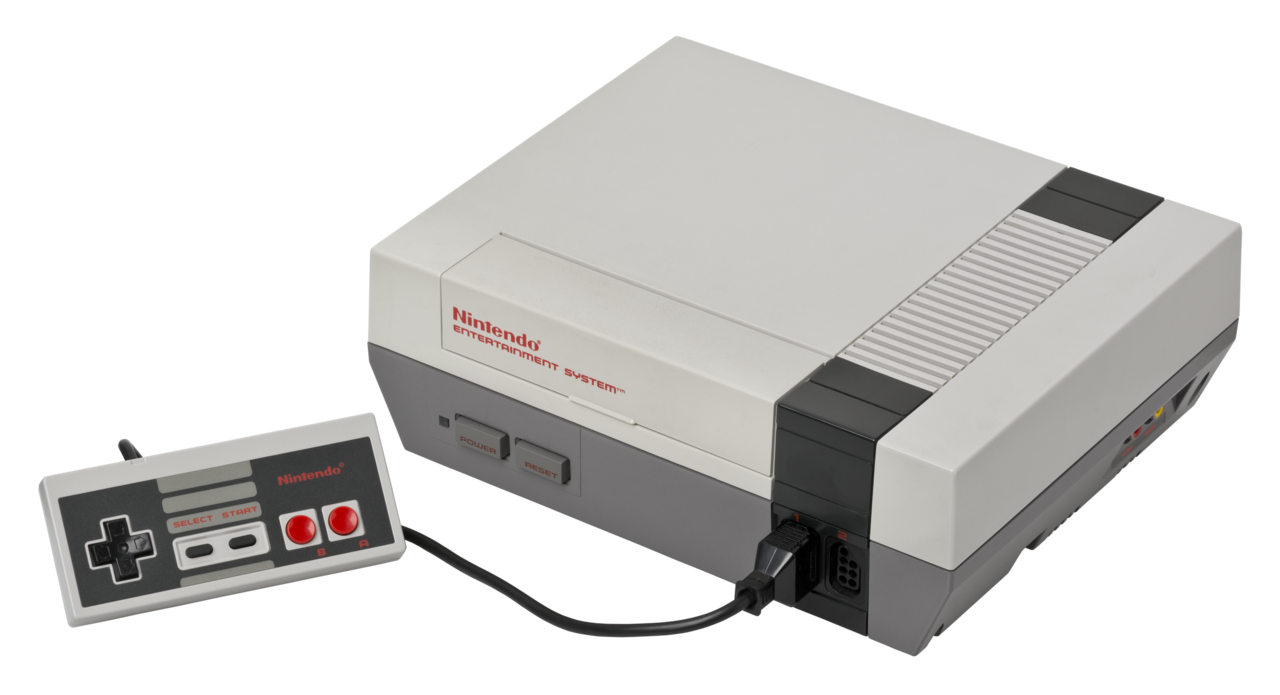
## How I Got My Passion For TechI’ve often been asked over the years, how did you get interested in tech? Since I was just asked yesterday by someone, I decided what better way to answer that question than with a blog post. I first got interested in tech at a very early age, likely around 4 or 5 years old. I was living in [Houston, TX]( ), as my parents moved there when I was between 2 and 3 years old. They moved there from [Cocoa Beach, FL]( ) because of the oil boom that was just starting. Plus, it was a much bigger city than Cocoa Beach which they wanted mainly for job market stuff. We were living on a 75 acre ranch at the time and I remember I had a 13-inch black and white Sony TV that I watched cartoons on. One day, out of the blue, my dad decided to hook up this machine to my TV called[ Pong]( ). I had no idea what Pong was, but little did I know it would be the beginning of a new journey for me in life and one that would stick with me forever. Once Pops got it hooked up, and tuned the TV to channel 3, as that’s how we played video games for many years back in the day, I heard this little set of intro beeps and noises, and I was instantly intrigued. I remember I sat in front of my TV for hours upon hours that day, without eating, getting up and stretching or anything else. I was addicted and it was to some fascinating piece of technology that I was suddenly addicted to. Every day afterwards, I remember just sitting in front of that small TV playing Pong endlessly for hours on end as if it were all life had to offer. Little did I know at the time that this would be just the beginning of a life long fascination to video games and all things tech. Two or three years later, the [Atari 2600]( ) was really becoming popular and it was something I wanted my parents to get me as soon as I could. Unfortunately, the Atari 2600 would be out for a couple of years before we’d get one. Funny thing is, I remember that day like it was yesterday when it finally happened. My mom and my grandmother, Nana, went to [Willowbrook mall in Houston]( ) to go shopping. I had been talking up a storm about wanting an Atari, and little did I know that it would happen on this day. To make a kind of long story short, we went to several department stores such as [Montgomery Wards]( ), [JC Penney’s]( ), Sears and others, as well as a few toy stores such as KB Toys, The Children’s Palace, [Radio Shack]( ) and a one off place called [Game Peddler](https://www.houstonarchitecture.com/topic/22307-the-game-peddler-in-willowbrook-mall/ ). What I didn’t know at the time was that my mom was looking for the best deal price wise on an Atari 2600 and bundles that included a game or two. We ended up going to back to [KB Toys]( ), which I thought was super weird, as that was something we had never really done. At the same time, I was getting super excited as I kind of knew what might be about to happen. Sure enough, we walked in, my mom asked a sales person for some help getting an Atari 2600 and a couple of games. Those two games were [Adventure]( ) and [Yars’ Revenge]( ). The console came with Combat. I can still feel the chills, the excitement, the joy and the huge smile I had on my face knowing my life long dreams(7 years old at the time) had just come true. Life was now complete! Or was it? I couldn’t wait to get home, but unfortunately my mom and Nana were hungry, so we went to the food court in the mall to get something to eat. Then we went over to [Toys ‘R Us]( ) which was right across the street to look for more games, though I don’t think we bought anything. Finally, we’re home and ready to get this thing hooked up. It seemed like mom was taking forever to figure it out and get it all hooked up, but surely that was just the adrenaline and excitement Again, once the console powered on, and I heard whatever noise it was that the Atari 2600 produced, I was intrigued beyond all belief. I think my mom actually put Adventure in the slot first, and that too was an instant game changer. Adventure would go on to be one of the toughest games at the time, but one of my most played games as well as one of my top 5 games of that era. While I did get my start on Pong, I really credit the Atari 2600 as what got me into video games as a whole when I was a kid. I think a lot of that had to do with the fact that it was in color unlike Pong which was black and white only. Plus the Atari obviously had a lot more sounds and more in-depth games than what Pong offered. From then on, my interest and my addiction to all things tech, any thing that beeped, made noise or anything similar was something that I wanted to know more about and wanted to tinker with. We pretty much owned every game console after that point, except for a few such as [Odyssey]( ) and [Odyssey 2]( ). We owned consoles such as [Intel]( )[l]( )[ivision]( ), [ColecoVision]( ), [Atari 5200]( ) and [Atari 7800]( ) as well as later consoles such as the [Nintendo NES]( ) and again, most everything afterwards. This interest carried over well into my teens and my adult life. Today, I have a huge interest and obsession with mobile phones, such as [Android]( ) phones and [iPhones]( ). I still play video games as well at the age of almost 53. I mainly play on PC, but I do own an [Xbox Series S]( ), [Nintendo Switch]( ), [Steam Deck]( ) and of course a [Playstation 5]( ). While this is certainly a shortened version of what could be a very long post with regards to my love for tech over the years, it at least gives you the basics of what got me interested originally and is the reason why I’m so passionate about tech of all kinds to this very day. If you are like me and have a passion for tech and all things that go beep/boop, feel free to start up a conversation with me on Mastodon which is my social media platform of choice. You can find me here: [Cliff Wade](https://allthingstech.social/@cliffwade ) as I’m the co-admin of my own Mastodon instance, properly named: [AllThingsTech.social](https://allthingstech.social ). #AllThingsTech #Atari #ColecoVision #Nintendo #Playstation #Pong #Technology #Xbox image
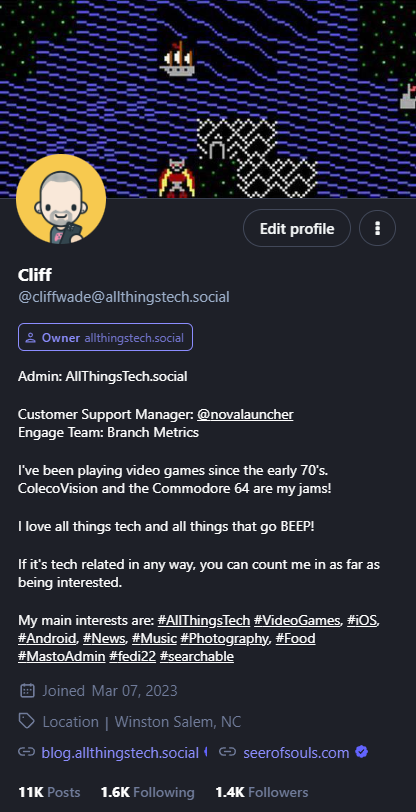
## Tips And Tricks For New Mastodon Users## **What Is Mastodon?**Mastodon was founded in 2016 by German software developer Eugen Rochko. Unlike Twitter, Facebook, Instagram or most any other social media site, Mastodon is a nonprofit, meaning that it’s not owned or run by one individual or an individual company like the sites listed above. Mastodon might look like a clone of Twitter at first glance, and in some ways I guess you can say it is, but those similarities don’t go very deep at all. In fact, the underlying system behind Mastodon is way more complex than that of something like Twitter. Mastodon is considered a “decentralized platform” and is defined as a “federated network which operates very similarly to email.” When you first create your account, you choose a server; similar to how you choose to open an email account at Gmail or anywhere else, which generates your profile’s address. So, for example, if you sign up for Mastodon via the [allthingstech.social](https://allthingstech.social/?ref=blog.allthingstech.social ) server, then your Mastodon address will be @[your username]@allthingstech.social. For example, my account is [cliffwade@allthingstech.social](https://allthingstech.social/@cliffwade?ref=blog.allthingstech.social ) or [allthingstech.social/@cliffwade](https://allthingstech.social/@cliffwade?ref=blog.allthingstech.social ) Both links point to the same URL, so you can click it and see my profile. But no matter which server you sign up with, you will be able to communicate with users from any other server, just like how Gmail users email Hotmail users and vice versa. However, some servers might have blocked other servers (perhaps if it’s an unsavory group), which would mean you can’t communicate with anyone from the blocked server. But all of this is for a completely different post as I want to focus on tips and tricks for new users that will help get you started and hopefully get you connected with others in a better, quicker way.## Tip 1: Upload A Profile PictureThis should be common sense on any new social media platform that you go to assuming the site allows you to. It doesn’t have to be a selfie or a picture actually taken of you. It can be something that helps others quickly identify your posts. This can be anything you want it to be. Just pick something that you enjoy, that you feel represents you or that has a story behind it. People associate profile pictures with a name, and they get used to it. This will help you build an audience quicker and make it to where anyone you follow or interact with more likely to click on your name to read your bio and possibly follow you back. To enhance this a little further, I strongly recommend you add a profile banner as well like you see at the top of my profile in the image below. Again, make it what you want. Just remember, little things like this show other users that you’ve taken a bit of time to let others know a bit about yourself.## Tip 2: Fill Out Your BioThis and tip 1 likely go hand in hand. Without a bit of information provided in your bio to let others know who you are, what you do, what you like or anything else of importance, you’re less likely to get interaction or follows from others. While this certainly doesn’t guarantee that you’ll get interaction or follows, it’s the best place to start when it comes to Mastodon, or most any social media platform for that matter.## Tip 3: Make An Introductory Toot (Post)Again, just like on every other social media platform, introducing yourself helps others get to know a bit about you. There’s no specific guidelines as to what you need to say in this introductory toot (post), so feel free to say what you want. Make it serious, make it funny, whatever you feel is best. This introductory post is something that can be shared every couple of weeks so that the newer users to Mastodon might get a chance to see it as well. It’s also recommended that you pin it to your profile as you can have up to 5 posts pinned on your profile. That number may however vary depending on what instance you are on.## Tip 4: Follow Anyone On Mastodon That You Followed On TwitterThere are several websites out there that can check your Twitter following and follower list and find out who of those have a Mastodon reference in their profile there, leading you to find their account on Mastodon itself. This is obviously a great way to start off your Mastodon journey by following some familiar people. A couple of websites you can use for this are [FediFinder](https://fedifinder.glitch.me/?ref=blog.allthingstech.social ) as well as [MastoFind](https://mastofind.net/?ref=blog.allthingstech.social ). There are likely many others but I’ve personally used both of these with good success when I first came over to Mastodon several months ago. This doesn’t necessarily mean you need or should follow everyone that you followed on Twitter, as you might very well want to start fresh and only follow new folks you find on Mastodon. However, most of us have people we have become really good friends with or interact with regularly and if some of those have moved over completely to Mastodon, then it’s often important to keep those relationships going. Using the sites above will help you find others who have added a Mastodon link to their Twitter profile and you should add your Mastodon profile link to your Twitter profile for this same reason.## Tip 5: Use Hashtags When You Toot (Post)Since there is no algorithm on Mastodon, the best way for users to find things they like is via hashtags. Using hashtags in your posts gives everyone the ability to not only search for keywords of things they like or want to see, but you can also follow hashtags within Mastodon which can really add to the overall experience of the platform. Some people say to only use up to three hashtags, others say to use as many as you want. I’m not sure if there is a “correct” way to do this or not, but I’d say use what you want and judge changing it based on interaction or lack of interaction. Another thing I did to enhance this when I first joined Mastodon was to create a toot (post) with regards to the hashtags I like to use, view and search for. This too allows others to know a bit more about you, who you are, what things you like and what things you might be posting or commenting on around Mastodon.## Come Join Us On [AllThingsTech.social](https://allthingstech.social/?ref=blog.allthingstech.social )With all of this said with regards to how to setup your profile and make the best impression from the get go, and you’re looking to join the Mastodon platform, we at [AllThingsTech.social](https://allthingstech.social/?ref=blog.allthingstech.social ) would love to have you! Regardless of which Mastodon app you choose to use, or if you decide to create your account on the web version of Mastodon, you can enter the instance name above and then click Ok/Enter or whatever, and then you should be able to create an account on the [AllThingsTech.social](https://allthingstech.social/?ref=blog.allthingstech.social ) instance.## Final ThoughtsThese are just five of the first tips and tricks that I learned and preached about when I first came over to Mastodon and I feel it helped and still helps me greatly today even after 3+ months of being on the platform. There are many, many other things you can do to make your experience better and to possibly grow quicker and I’d be more than happy if you would share those with me if you’d like. Maybe if I get enough suggestions of other tips and tricks for new users, or even experienced users, I could make another post here and list them and give you credit for your suggestions. #AllThingsTech #Mastodon #SocialMedia #Technology #TipsTricks